Add a lead and track your inquiries

Last verified

6 min 17 sec video · Watch on YouTube
Video transcript

In this video, you'll learn how to use Leads in Better Cater to track new catering inquiries, add a lead by hand, collect inquiries from your website, and convert a lead into an event.

Click CRM in the top menu, then Leads. This is where every new inquiry lives until it becomes a booked event or gets closed.

Keeping leads here instead of only in your inbox helps make sure nothing gets missed. The contact details, event date, guest count, and request all stay together.

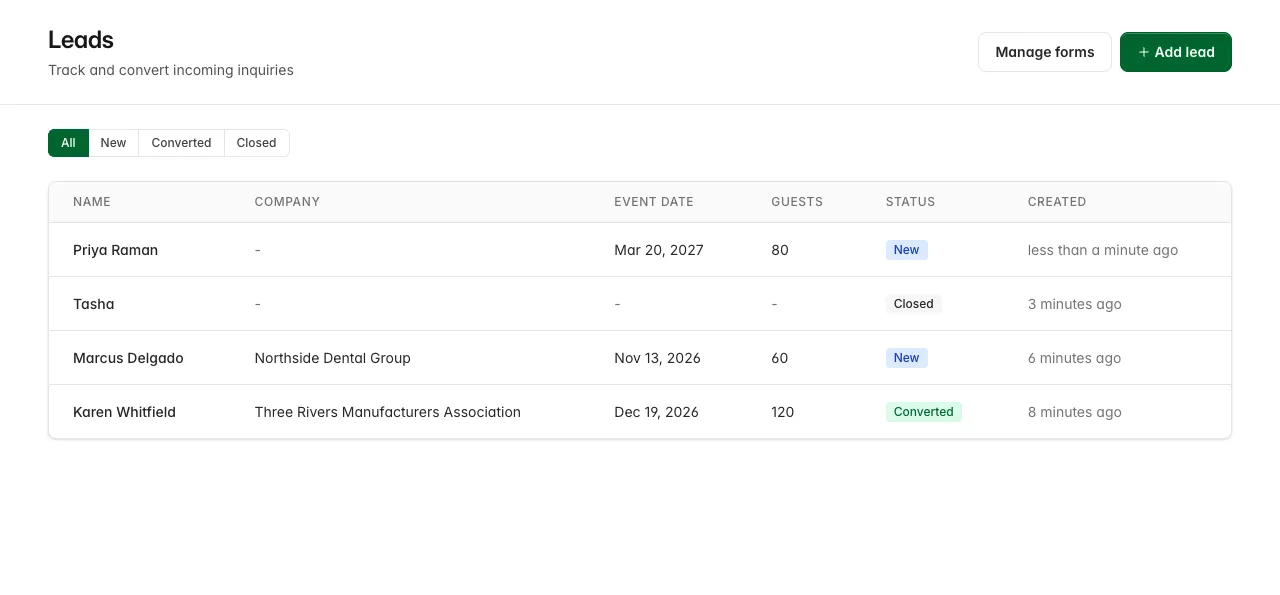
Each row shows the lead name, company, event date, guest count, status, and when the lead was created. If a field is blank, you'll see a dash.

The status tabs focus the list. All shows every lead, New shows open inquiries that still need attention, Converted shows leads that became events, and Closed shows inquiries that won't move forward.

New is the tab to check every day, because quick follow-up can be the difference between winning the event and losing it to another caterer.

Click a lead name to open the full inquiry. Contact information shows the name, company, email, and phone, so you know exactly who to follow up with, and the email is a link you can reply from.

Event interest shows the potential event: the event name, the date, and the guest count. That's enough to see whether the date is open and whether the inquiry is a fit.

If the lead came in through one of your lead forms, the Form submission section shows which form they used and the answers they sent.

Click Leads to go back. Add lead is for inquiries that come in by phone, email, walk-in, or referral, so they're tracked with the rest.

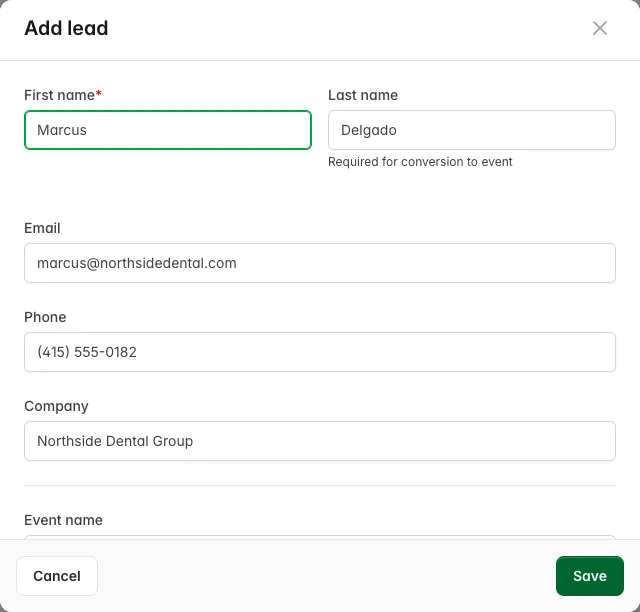
First name is the only required field, so you can save a lead while you're still on the call. Add the last name when you have it, because conversion needs it later.

Add any contact details you have, such as email, phone, and company. Then add the event details: event name, event date, and guest count.

Use Notes for anything you learned in the conversation, such as budget, menu ideas, venue, or timing, then click Save and the lead lands at the top of your list as New.

Open a lead any time and click Edit to update it after a call or an email. Close lead takes an inquiry out of your open pipeline when it won't move forward, and it stays in All for your records.

Convert is what you use when an inquiry is ready to become an event. The confirmation tells you it will create a contact, a client, and an event from this lead.

You don't start from scratch. The contact comes from the name and email, the client comes from the company, and the event comes from the event name, date, and guest count.

After conversion you land on the new event, ready to build the menu, add services, price it, and send the proposal. Lead notes and form answers carry over to the event's Internal Notes.

Back on the lead, the status shows Converted, with a Conversion details card linking to the contact and the event it created.

Manage forms opens Lead forms. These are hosted inquiry pages you can link from your website, so visitors send catering requests straight into Better Cater.

Click New form and give it a title, such as Wedding inquiry, Corporate catering request, or Request a quote.

Standard fields sets each one to Hidden, Optional, or Required, so you control what a visitor gives you. First name, last name, and email are always required, so you have enough to follow up.

Add custom field covers anything else you need to qualify the inquiry, like venue name, event type, budget range, dietary requirements, or how they heard about you.

Its Type can be Text for a short answer, Textarea for a longer one, or Dropdown when visitors should pick from choices you write. Then click Save changes.

The Public link is the form's address. Put it behind a Request a quote or Catering inquiry button on your website, or paste it into your email signature.

Open form shows the page a visitor sees: your business name, the form title, the fields you turned on, and the Send inquiry button.

What a visitor sends arrives at the top of your leads list as New, and we email you so you can follow up while the inquiry is still warm.

That's Leads. Use it to capture every inquiry, follow up faster, and turn the right ones into events without retyping what you already know.

That's it. If you have a question, email us at support@bettercater.com. Thanks for watching.

What it does. A lead is an inquiry you haven’t booked yet, and your leads list tracks every one of them until it books or falls through. You can add a lead by hand for a phone call, a walk-in, or a referral.

When you’d use it. Someone calls about a 60-person office lunch, or a past client refers a friend for a wedding. Add each one as a lead while you’re still on the phone.

Add a lead

  1. In the top menu, click CRM, then Leads.
  2. Click Add lead.
  3. Enter a First name. It’s the only field you have to fill in.
  4. Add whatever else you have: Last name, Email, Phone, Company.
  5. Below the divider, fill in the job itself: Event name, Event date, Guest count.
  6. Put what you learned on the call into Notes.
  7. Click Save.

Adding a lead by hand

What you’ll see. The lead at the top of your list with status New.

Work your leads list

CRM > Leads is every lead you have, newest first. Each row shows Name, Company, Event date, Guests, Status, and Created, which counts back from when the lead came in. Anything you didn’t fill in shows as a dash. Click a name to open the lead.

The tabs above the table filter by status:

  • All shows every lead.
  • New is your open pipeline: leads you haven’t converted or closed.
  • Converted is the ones that became events.
  • Closed is the ones that won’t book.

The leads list, filtered by status

Update a lead as you learn more

  1. Open the lead from the list.
  2. Click Edit.
  3. Change any detail, or add to Notes.
  4. Click Save.

What you’ll see. The lead’s page showing the new details. Notes are the place for call-by-call history: a headcount that moved, a tasting they asked for, a budget they mentioned.

When the lead books, or doesn’t

A lead has two endings, and both are covered in turning a lead into an event: Convert builds the client, contact, and event from the lead’s details, and Close lead retires one that isn’t going to book.

Good to know.

  • A last name isn’t needed to save the lead, but you do need one before you can turn the lead into an event, so add it as soon as you have it.
  • Once a lead is Converted or Closed, the Edit button is gone. The page stays readable, but you can’t change the lead any more.
  • There’s no delete. Closing is how you retire a lead you don’t want in your pipeline, and closed leads stay on the All tab.
  • Leads from your lead forms land in this same list. Their page carries a Form submission section naming the form and listing the visitor’s answers, so that’s how you tell them apart from the ones you typed in yourself.
  • The list updates on its own. A form submission appears at the top while you’re looking at the page, no refresh needed.
  • The Open leads tile on your dashboard counts the New ones and links straight to this list.

Did this answer your question?

See it in your own kitchen

The free trial starts with your real menu, your real prices, and your next real event.

30-day free trial · No credit card required · Rated 4.8 on Capterra

Send us a message

Ask us anything about Better Cater and we'll get back to you by email soon.

See how Better Cater works for your catering business

Tell us where to send it and we'll email you a short video walkthrough: how caterers replace spreadsheets, build events faster, send polished proposals, and see the profit on every job.

Watch it on your own time. No sales call required.