
Clients overview

Last verified

5 min 15 sec video · Watch on YouTube
Video transcript

In this video, you'll learn how to use Clients in Better Cater to keep your customer details in one place, add the contacts on each one, see a client's event history, and bill the right person.

Click CRM in the top menu, then Clients. Think of Clients as your customer list: the businesses, families, and individuals you cater for, along with the people you work with and the events they've booked.

Each row shows the client, their primary contact, and location, so the list alone tells you who to call and who to bill.

A client is the business or household you cater for, a contact is a person on it, the primary contact is who we offer first on a new event, and the billing email is where proposals and invoices go.

Search matches client names and their contacts' names and emails, so you can type the person you spoke to and find the company that pays.

The pencil edits a client, and the archive icon takes one you no longer cater for off the list. Their past events stay put.

Click Add Client to create a new customer record. The client can be a company, organization, household, or individual. Add the client name, choose a primary contact if you already have one, then click Create Client.

Click a client's name to open their page. Client Details holds the name, the people you deal with there, and the billing email.

Contacts are the people connected to a client. You might have one person planning the menu, another handling payment, and another coordinating the event day, and we keep them all tied to the same client.

Add contact finds someone already in your contacts, or Create New takes a first name, last name, email, and mobile phone.

The Primary tag marks the one we offer first, Make primary moves it, and Remove takes a contact off this client but keeps them in your contacts.

Billing Email is the accounts address for this client. When it's set, proposals and invoices use that billing email, even if the event contact is someone else.

Billing Address sits beside it and fills the location column on the list. Edit is where you set it, along with the name and the primary contact.

Notes is for what your crew needs to remember: where the loading dock is, a nut allergy in the office, or a purchase order number they always ask for.

The Events section shows everything this client has booked with you, including the event name, date, status, and guest count. Before you quote the next event, you can see what they ordered before and how often they book.

New event starts one for this client right here, and when a client has more than one contact we ask who the event is for, so the right person ends up on the proposal and the invoice.

All of this information carries through to your client-facing documents. Proposals show Prepared For, invoices show Bill To, and we pull in the right client, contact, billing address, phone, and email.

The Contacts page lists those same people on their own. Open one to see their events and every client they're attached to, which helps when a contact changes jobs.

And when a lead turns into an event, we create the client and the contact from the inquiry, so you don't have to retype the same information.

That's Clients in Better Cater. Use it to keep customer details organized, track every event a client has booked, and make sure proposals and invoices always go to the right place.

That's it. If you have a question, email us at support@bettercater.com. Thanks for watching.

What it does. Clients is your customer list: the businesses, households and individuals you cater for, the people you deal with at each one, and every event they have booked. It is where Better Cater looks up who to call and who to bill.

When you’d use it. Before you quote a repeat customer, to see what they ordered last time and how often they book. Or when a planner and a billing office are different people and the invoice has to reach the right one.

How to open it

Click CRM in the top menu, then Clients.
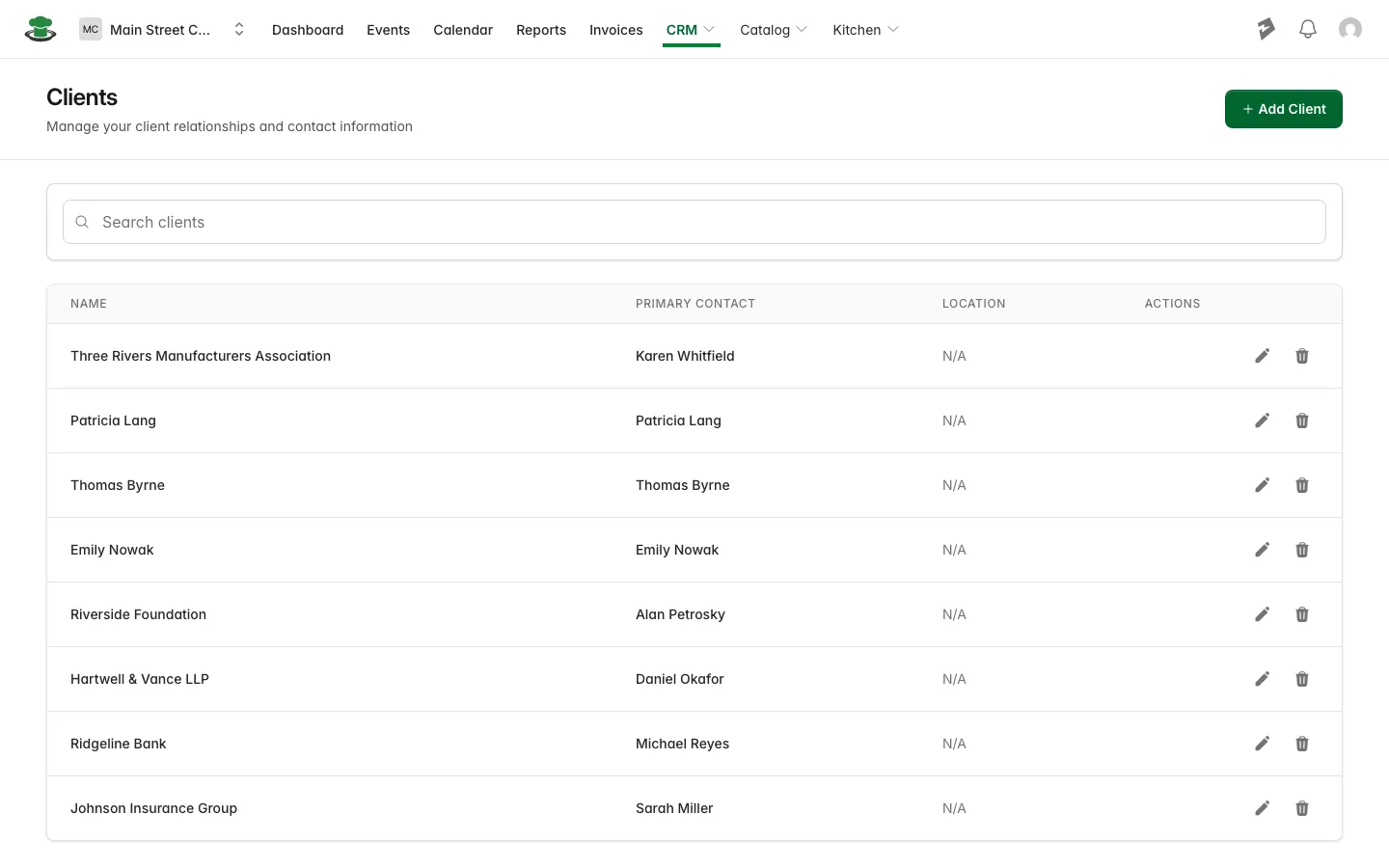
The Clients list

The list

Each row shows the client, their primary contact and their location. Search matches client names and their contacts’ names and emails, so you can type the person you spoke to and find the company that pays. The pencil edits a client, and the archive icon takes one you no longer cater for off the list; their past events stay put.

Add Client creates a new customer record. The client can be a company, an organization, a household or an individual. Give it a name, choose a primary contact if you already have one, then click Create Client. The steps are in add a client and their contacts.

A client’s page

Click a client’s name to open it.

Section What it holds
Client Details The client’s name, the people you deal with there, and the billing email. Edit sets the name, the primary contact and the billing address.
Contacts The people connected to this client, such as the planner, the person who pays, and the day-of coordinator. Add contact finds someone already in your contacts, or Create New takes a first name, last name, email and mobile phone. Primary marks the one offered first on a new event, Make primary moves it, and Remove takes a contact off this client but keeps them in your contacts.
Billing Email The accounts address for this client. When it is set, proposals and invoices go there even if the event contact is someone else.
Billing Address Fills the location column on the list and prints on the documents.
Notes What your crew needs to remember: where the loading dock is, an allergy in the office, a purchase order number they always ask for.
Events Everything this client has booked with you, with the event name, date, status and guest count.

Starting an event from a client

New event on the client’s page starts one for that client. When the client has more than one contact, Better Cater asks who the event is for, so that person ends up on the proposal and the invoice. The client, contact, billing address, phone and email carry through to the documents: proposals show them under Prepared For, invoices under Bill To.

Contacts and leads

The Contacts page, also under CRM, lists the same people on their own. Open one to see their events and every client they are attached to, which helps when a contact changes jobs. When a lead turns into an event, the client and the contact are created from the inquiry, so nothing is retyped. See add and track leads.

Good to know.

  • Primary is a default, not a rule. The contact you pick when starting an event is the one the proposal and invoice go to, and you can change it on the event’s Details tab.
  • Archiving a client takes it off the list. Its past events stay put.

Did this answer your question?

See it in your own kitchen

The free trial starts with your real menu, your real prices, and your next real event.

30-day free trial · No credit card required · Rated 4.8 on Capterra

Send us a message

Ask us anything about Better Cater and we'll get back to you by email soon.

See how Better Cater works for your catering business

Tell us where to send it and we'll email you a short video walkthrough: how caterers replace spreadsheets, build events faster, send polished proposals, and see the profit on every job.

Watch it on your own time. No sales call required.