
What it does. A lead form collects inquiries from your own website. Embed it on one of your pages, or link to it from a button. When someone fills it out, the submission shows up as a lead in your CRM.
When you’d use it. Put it on your contact or catering page, add a “Request a quote” button to your website, or drop the link in your email signature.
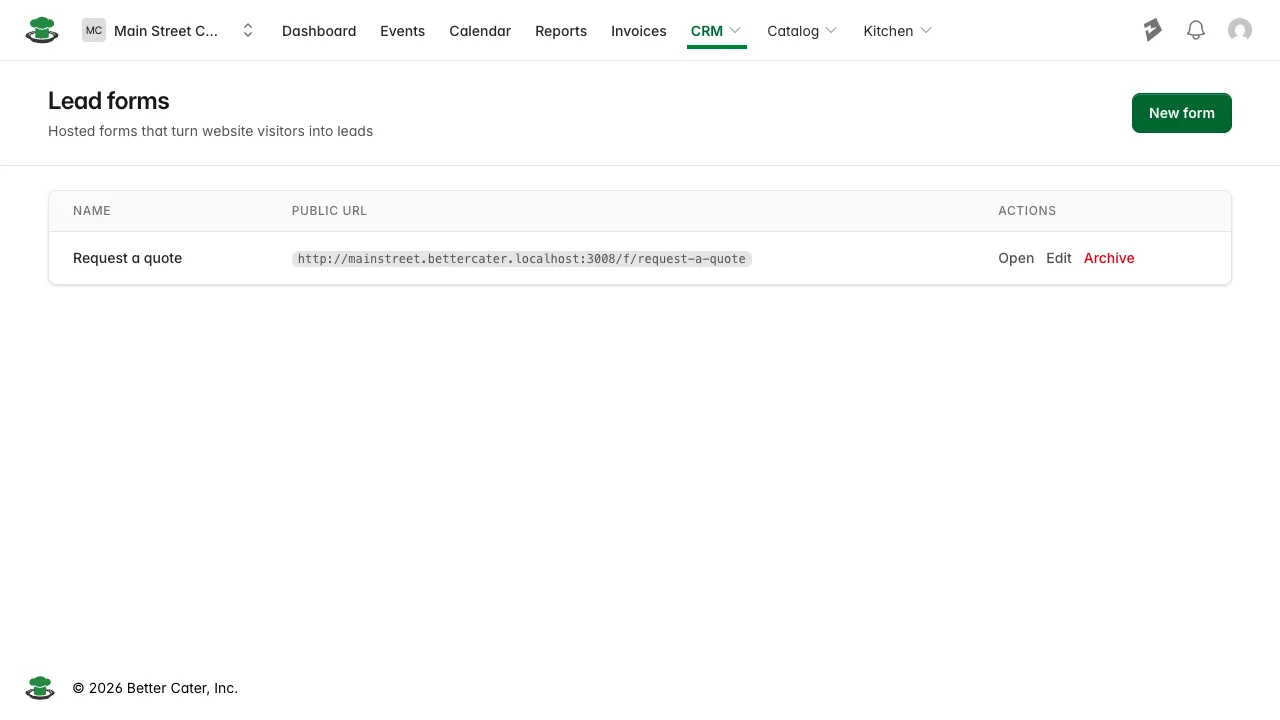
Find your lead forms
- In the top menu, click CRM, then Leads.
- Click Manage forms.
Create a form
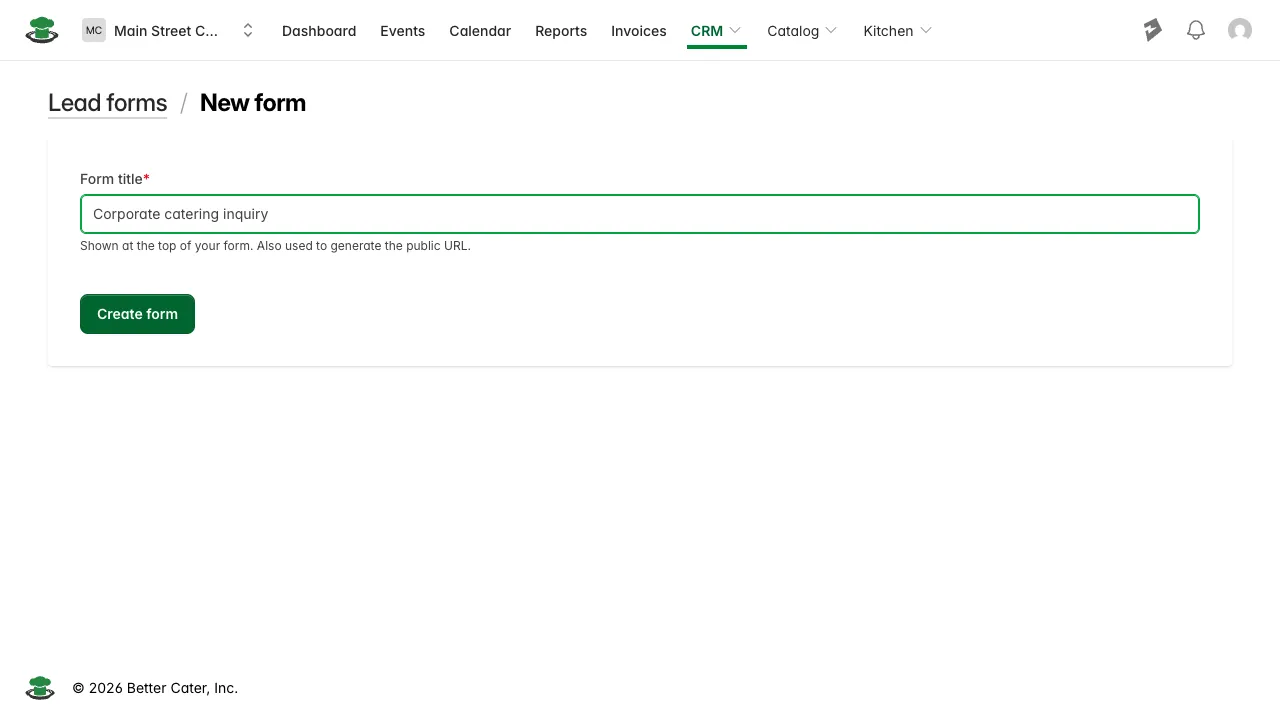
- Click New form.
- Enter a Form title, like “Wedding inquiry.” Better Cater uses it to build the form’s public link.
- Click Create form.
Choose which fields show
On the form’s edit page, set each standard field to Hidden, Optional, or Required. First name, Last name, and Email are always required. Turn on the rest as you need them, like Phone, Company, Event name, Event date, or Guest count. Click Add custom field if you want to ask for something that isn’t on the list, like a venue name or dietary requirements, and type the question as its Label. When visitors should be able to tick more than one answer, set its Type to Checkboxes and type the options one per line.
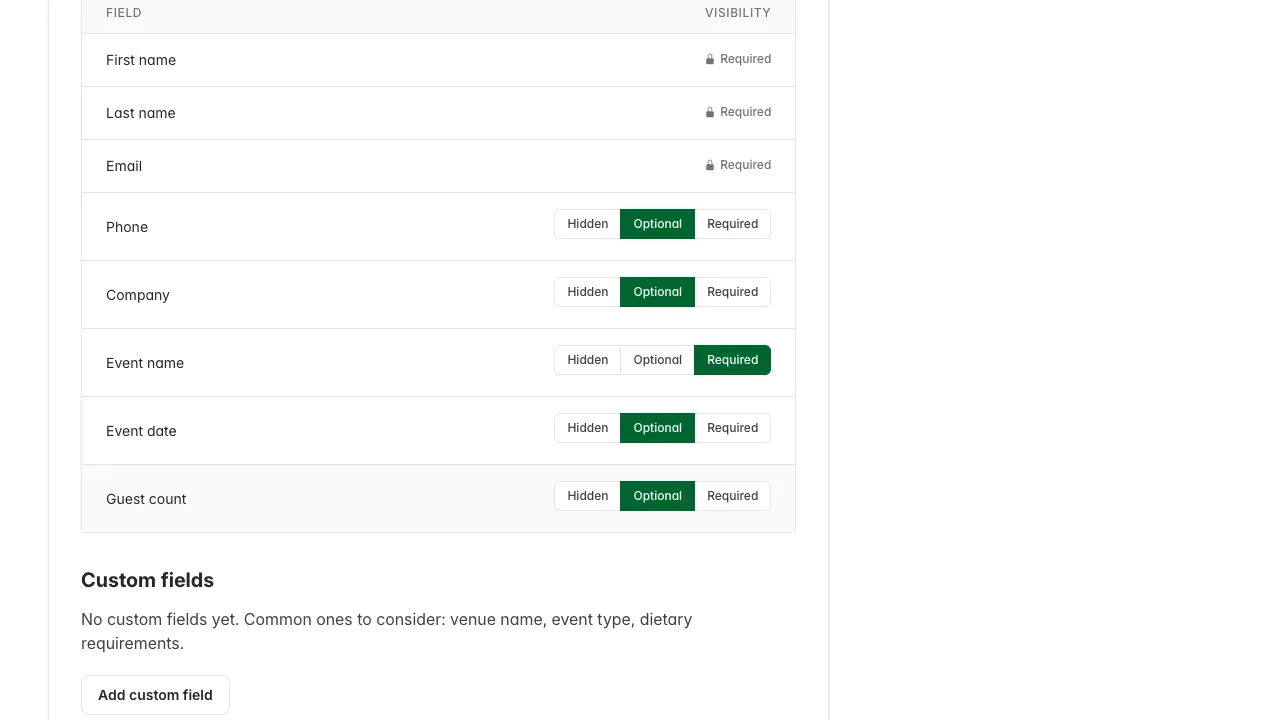
Click Save changes. Your live form doesn’t change until you do.
Put the form on your website
The form’s edit page gives you two ways to do it.
Embed it on a page. Visitors fill out the form without leaving your site. See how to embed a lead form on your website.
Link to it. The Public link panel shows the form’s own page on your account’s subdomain, something like yourbusiness.bettercater.app/f/wedding-inquiry. Point a “Request a quote” button, a nav item, or an email signature line at that link. Click Open form to preview what a visitor sees.
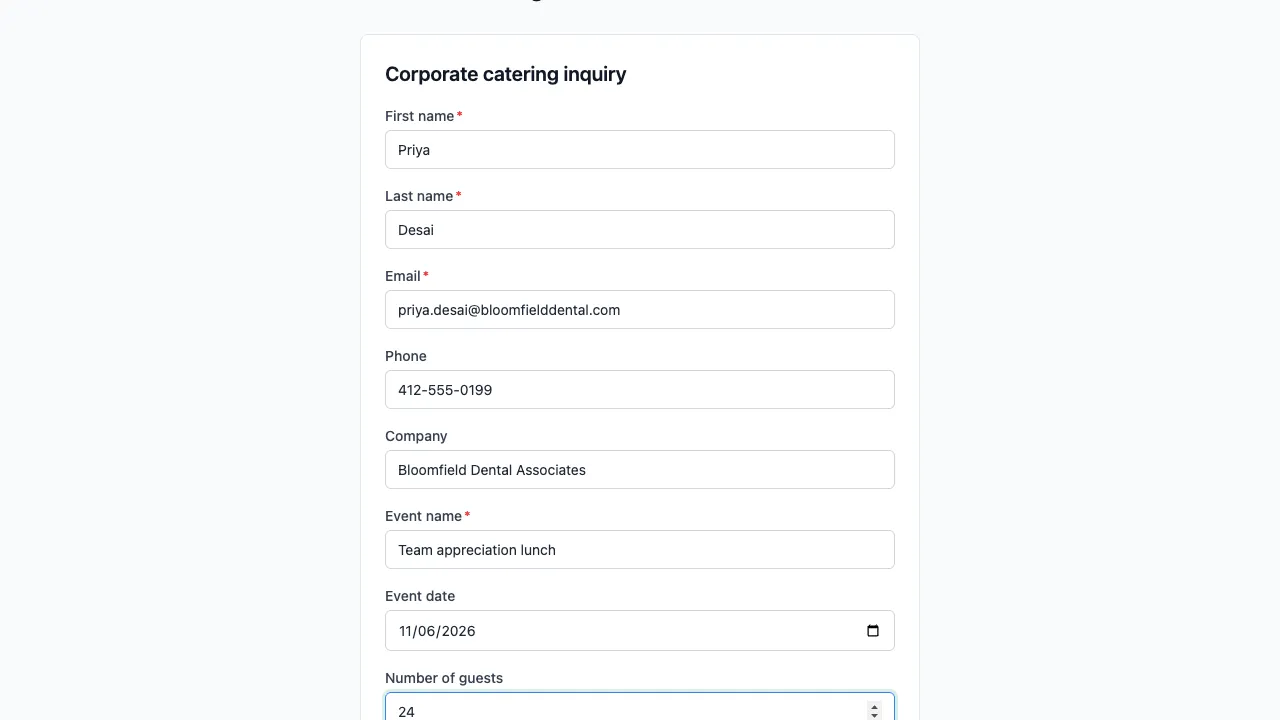
What you’ll see. Embedded, the form shows its title and only the fields you turned on, since your own page already carries your name. The linked page adds your business name at the top:
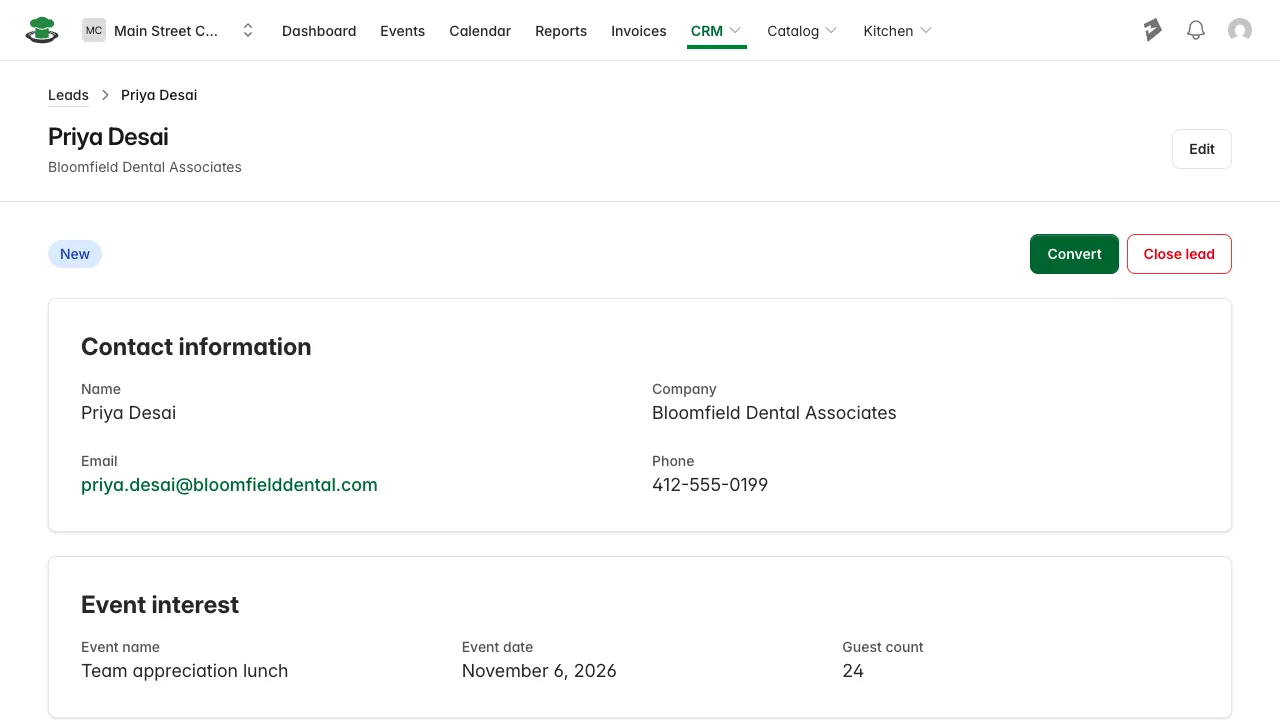
After they submit, they see a plain thank-you message, and their answers show up as a new lead in CRM > Leads with status New:
Good to know.
- Each submission also emails the account owner, subject “New lead: [name],” with reply-to set to the lead’s own address so you can answer straight from your inbox.
- Some built-in fields are worded differently on the public form than on the edit page: Guest count shows to visitors as “Number of guests”. A custom field shows exactly the label you typed.
- Each lead form belongs to one location. With a single location, every new form uses it automatically; once you have more than one, each form’s edit page lets you pick which one it’s for.
- You can run more than one form, like one per location, or a shorter one for a “quick quote” nav link and a longer one for a dedicated inquiry page.
- From here, turn the lead into an event once you’ve talked to them.