
What it does. A client is who you’re billing: a company, an organization, or a person. Contacts are the people at that client you actually deal with, and each one can receive the proposals and invoices you send.
When you’d use it. Before you can create an event, since every event needs a client. Add a second contact once you learn who else touches the booking, like a billing office that’s separate from the event planner.
Add a client
- In the top menu, click CRM, then Clients.
- Click Add Client.
- Enter the client name. Use a company name for a business (“Steel Valley Manufacturing”) or a person’s name for an individual.
- Optionally search for an existing contact under Primary Contact, or leave it blank.
- Click Create Client.

Add a contact to a client
- Open the client from CRM > Clients.
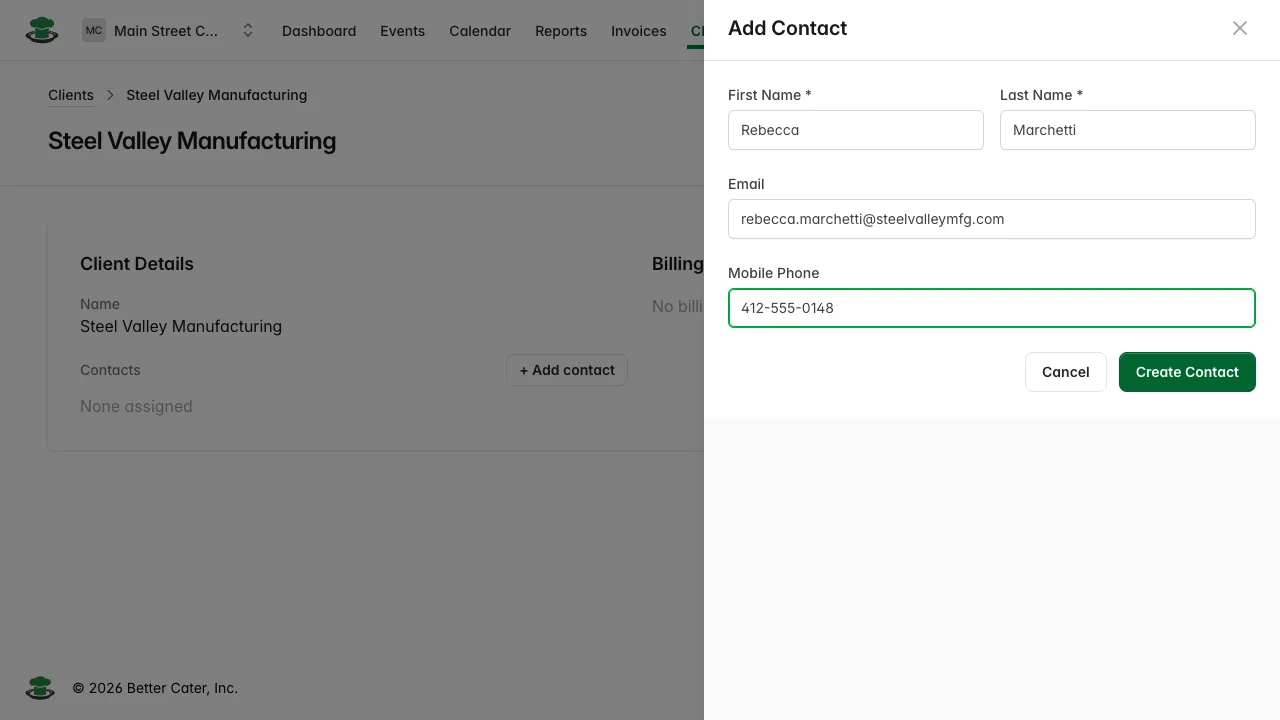
- Click + Add contact.
- Search for an existing contact, or click Create New.
- Enter First Name and Last Name. Email and Mobile Phone are optional, but a contact needs an email to actually receive documents.
- Click Create Contact.
The contact now shows in the client’s Contacts list with a Make primary button. Click it to mark that contact as the client’s default, the one Better Cater offers first the next time you start an event for this client.
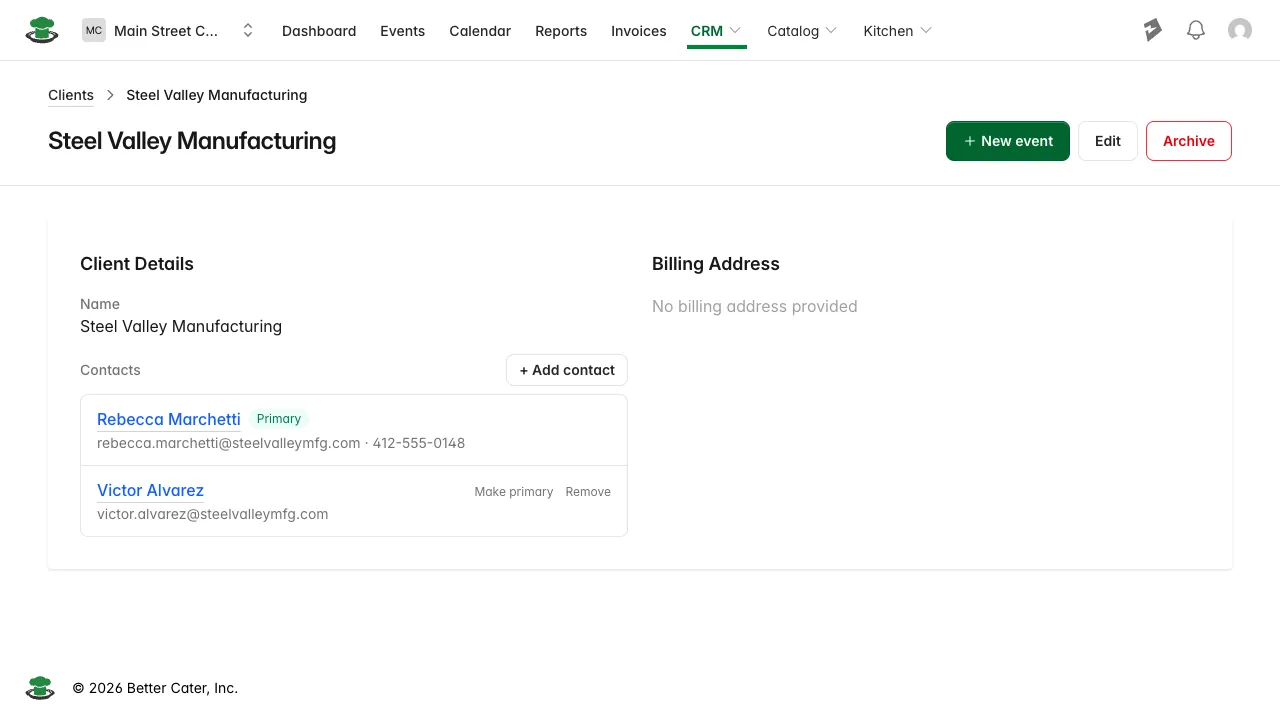
Which contact gets proposals and invoices
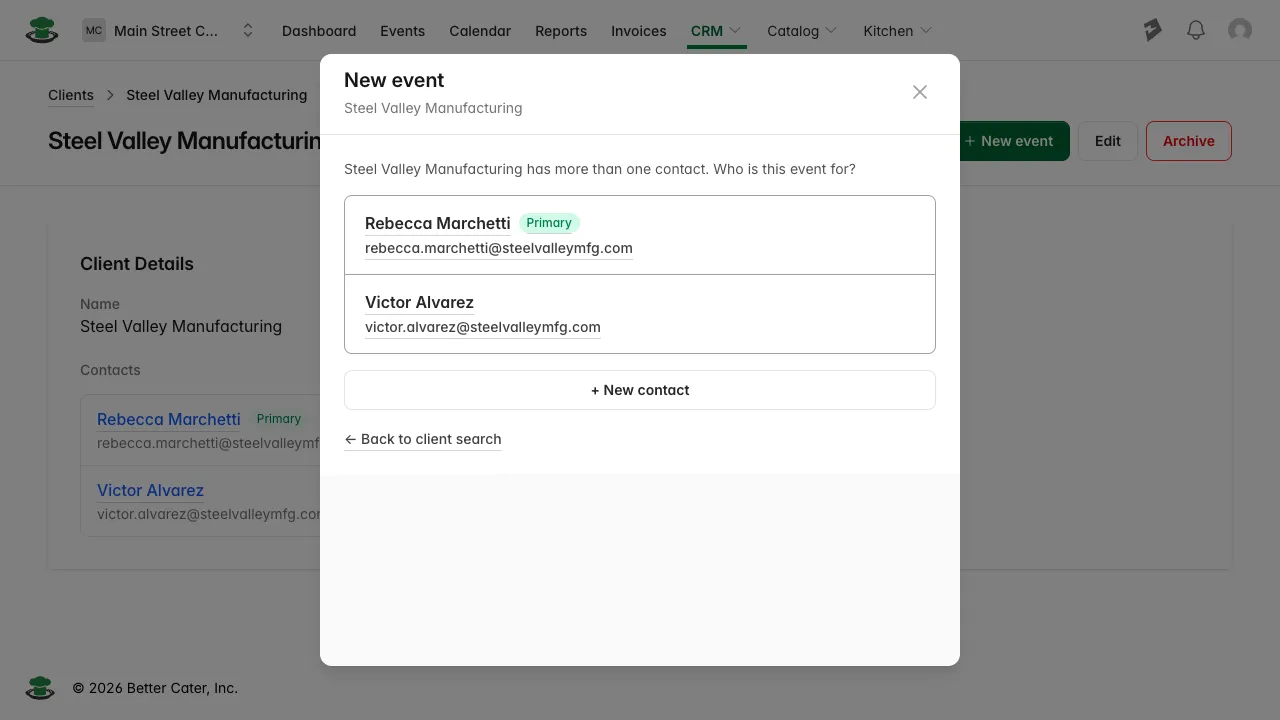
Primary is a default, not a rule. When you start an event for a client with more than one contact, Better Cater asks who the event is actually for:
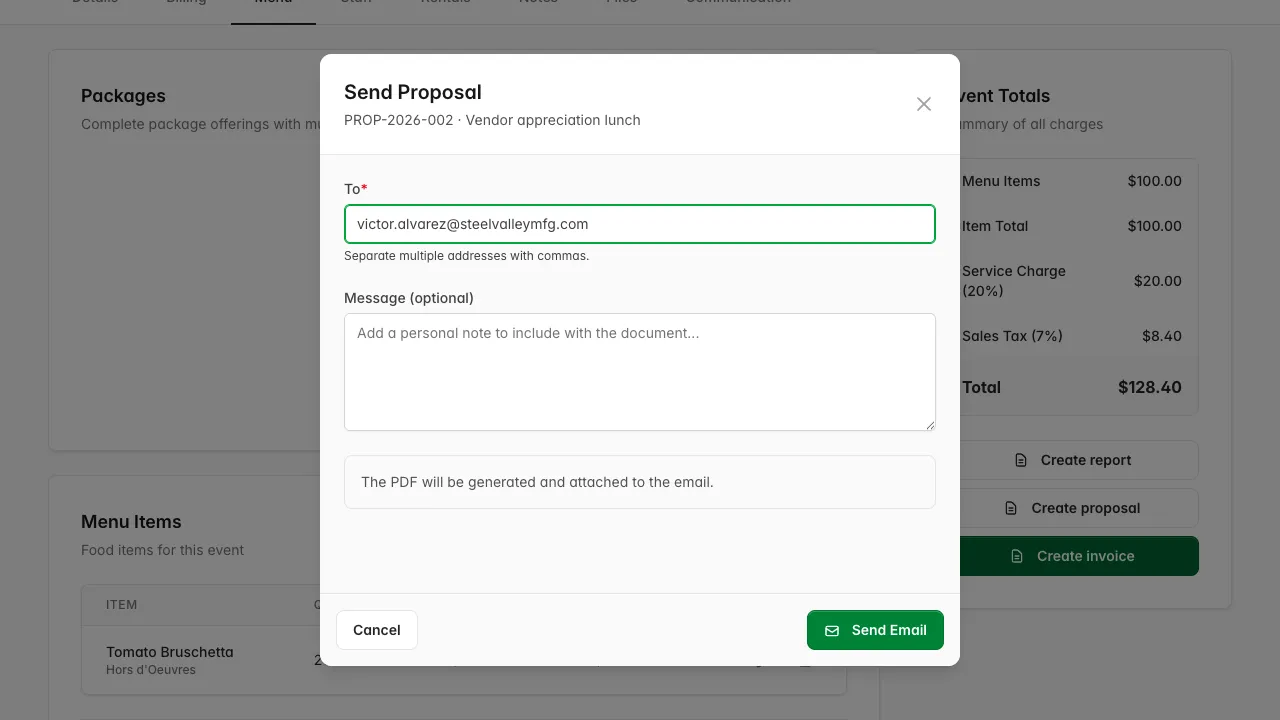
Whichever contact you pick shows on the event’s Client card, and that’s who the To field prefills when you send a proposal or invoice, not necessarily the primary contact:
To change which contact an event is for, open the event’s Details tab, click Edit next to Client, and pick from the Contact dropdown. The dropdown only appears once the client has more than one contact; with a single contact, the event just uses it.

Create a client while starting an event
- Click New event, then search for the client.
- If they’re new, click Create New.
- Enter the contact’s First Name, Last Name, Email, and Phone.
- Enter a Company name if this is a business. Leave it blank for an individual, and Better Cater names the client after the contact.
- Click Create Client.
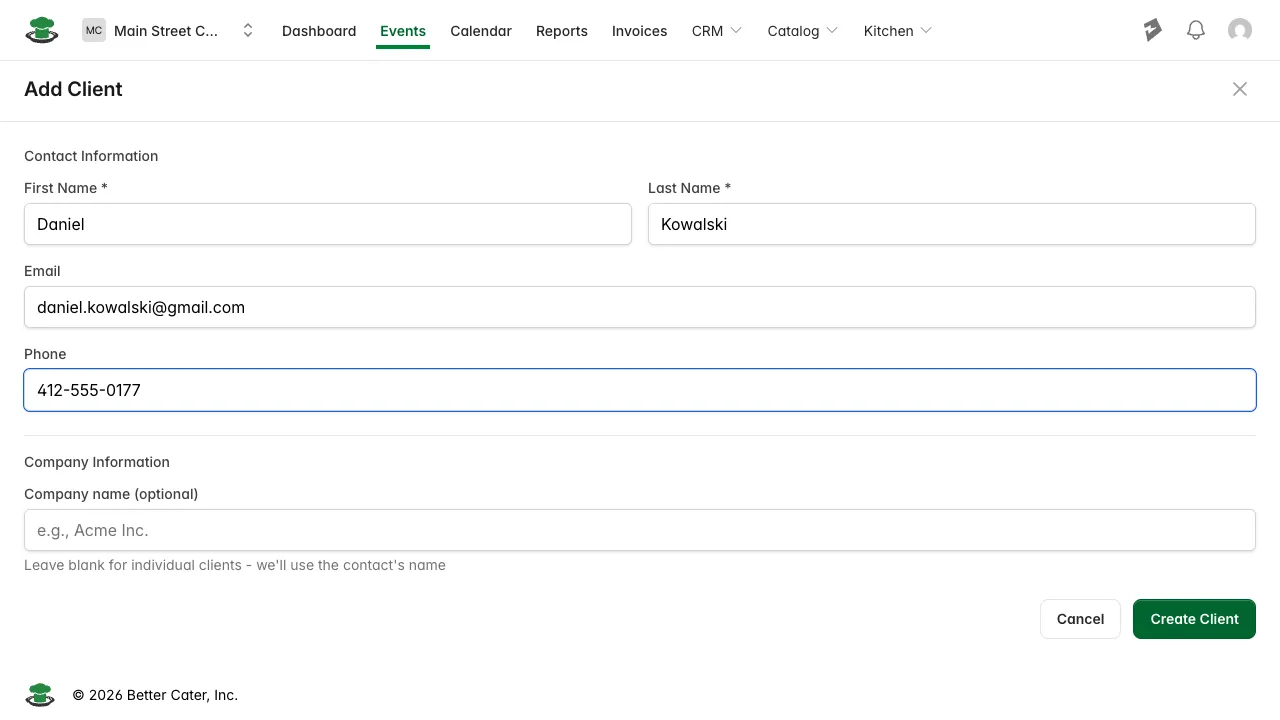
What you’ll see. The drawer continues straight into the event’s name, date, and guest count, with the client’s name shown under “New event.”
Good to know.
- Leaving Company name blank on the new-event flow makes the client an individual named after the contact, not a company with a blank name.
- If you set a Billing email on the client’s Edit page, invoices and proposals go there instead, no matter which contact the event is assigned to.
- Client search matches on the client’s own name and on its contacts’ names and emails, so searching a person’s name can surface the company they work for.