
What it does. Duplicating an event copies a past or upcoming event onto a new date, bringing the menu, staff, rentals, charges, timeline, client, and venue with it. The copy is a separate job that starts fresh on status, invoicing, and payments.
When you’d use it. The corporate lunch drop you run every Tuesday for the same office, or the annual gala that comes back each year with the same menu and a new date. For a job that looks nothing like anything you’ve run before, start a new event instead.
How to duplicate an event
- In the top menu, click Events.
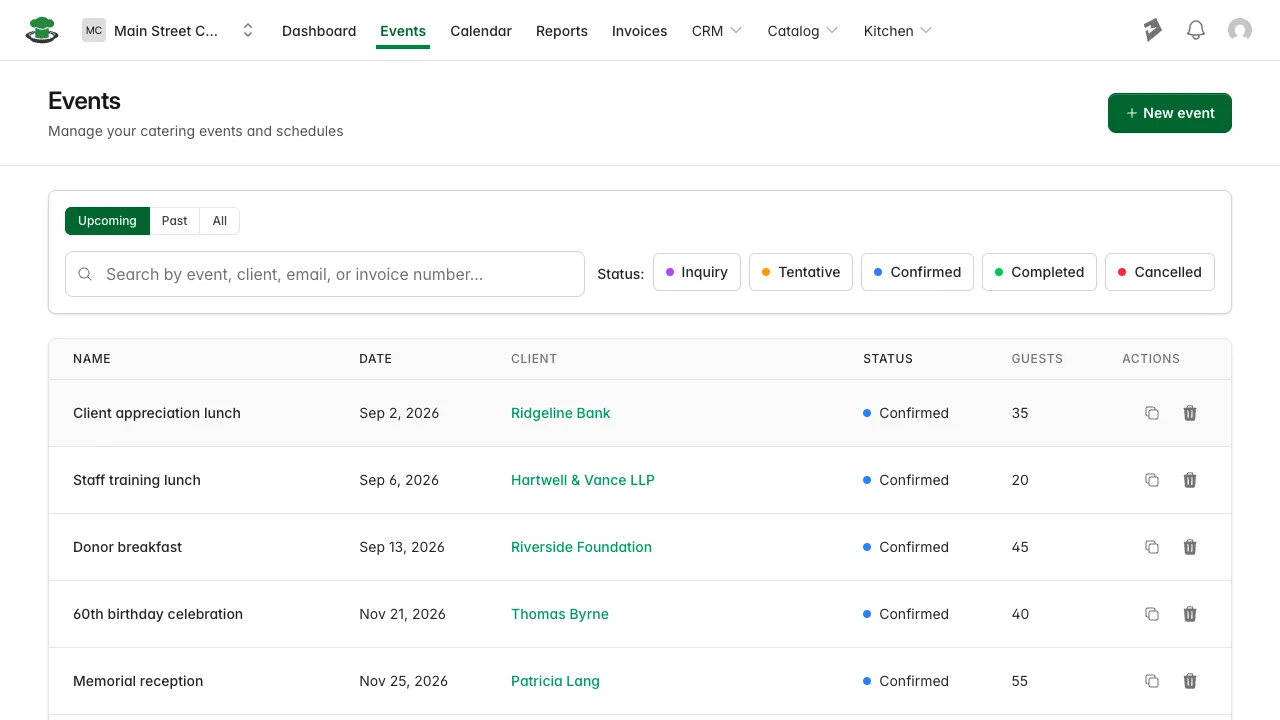
- Find the event you want to copy. The list opens on Upcoming, so switch to Past or All, or use Search, if the one you want isn’t there.
- In the Actions column on that row, click the duplicate icon, the two overlapping squares to the left of the trash can.
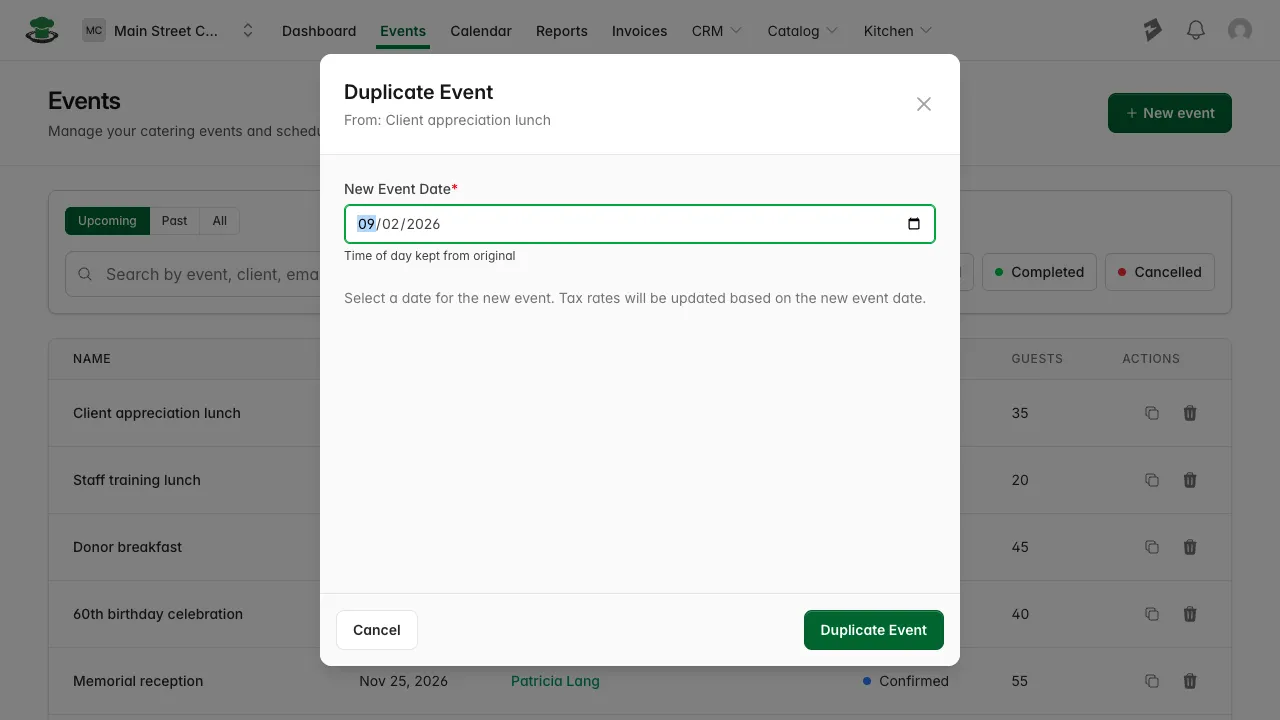
- In the Duplicate Event window, set New Event Date. It opens on the original event’s date, so change it, or you’ll get a second event on the same day.
- If your account has more than one location, pick the Location hosting the copy.
- Click Duplicate Event.
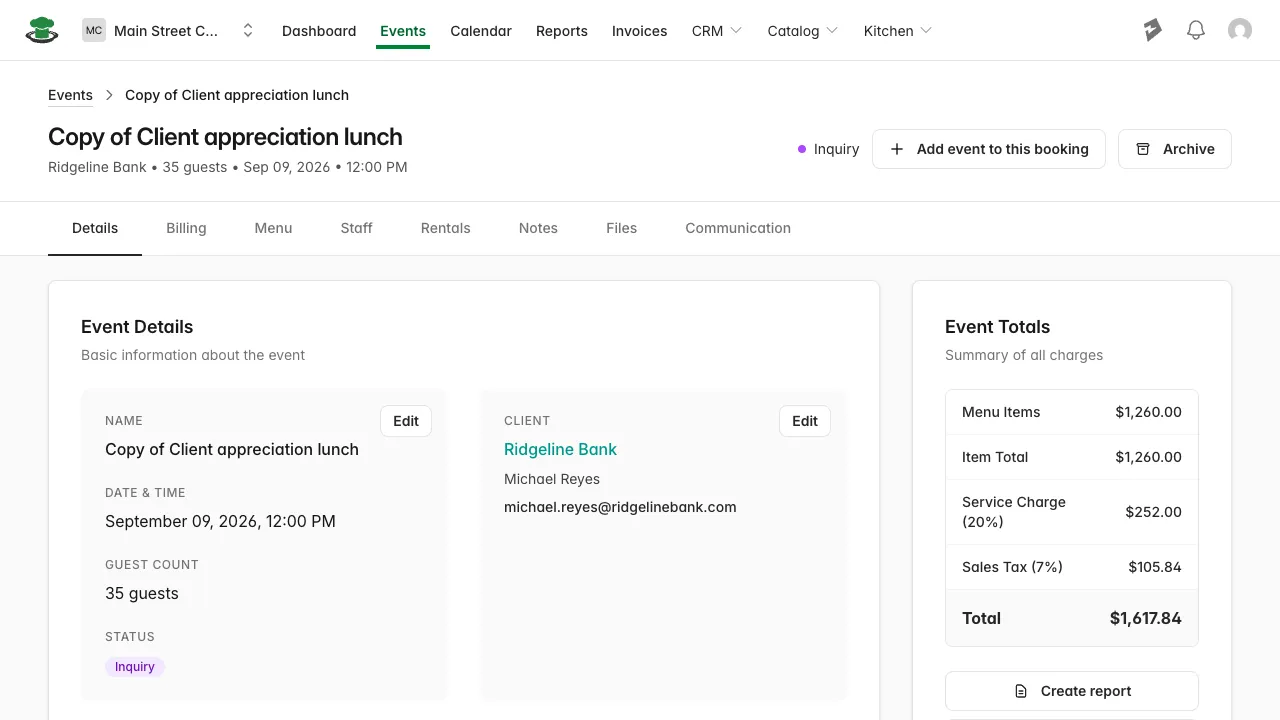
What you’ll see. The new event opens on its Details tab. It’s named “Copy of” plus the original’s name, sits at Inquiry status, and its Event Totals panel already matches the original. Click Edit next to the name to rename it and adjust the guest count.
What comes across, and what starts fresh
Carried onto the copy:
- Client and contact
- Guest count
- Venue name and address
- Menu items, packages and their components, rentals, and staff roles, with their quantities and prices
- Service charge, gratuity, fees, and discounts
- The timeline, moved to the new date with the same times of day
- Start and end time of day
- Event notes, contract terms, and tax settings
Starts fresh on the copy:
- The name, set to “Copy of” plus the original’s name
- The date you picked, and the Inquiry status
- The PO #
- Invoices, proposals, payments, and the invoice number that goes with them
Good to know.
- The copy is its own job, not a second date on the original. Payments and invoices on the original stay there, and the copy starts with a zero balance against its full total.
- The tax lines themselves are rebuilt for the new date, using the rates that apply then.
- Prices come over exactly as they stood on the original, not as they stand in your catalog today. If you’ve raised a price since, the copy still carries the old one, so check the totals before quoting from a copy of an older event. Click Edit on the item and update its Unit Price.
- Duplicating the same event week after week leaves you with several events sharing one name, so rename each copy before you send anything to the client.
- The copy always starts at Inquiry, even when the original was Confirmed. Move it along yourself as the booking firms up, the same way you set any event’s status.
- Files attached to the original don’t come across. Re-attach anything the new job needs on its Files tab.
- Duplicating is one event at a time. To put a second service on the same job, like a rehearsal dinner alongside a wedding, use Add event to this booking on the event instead.