
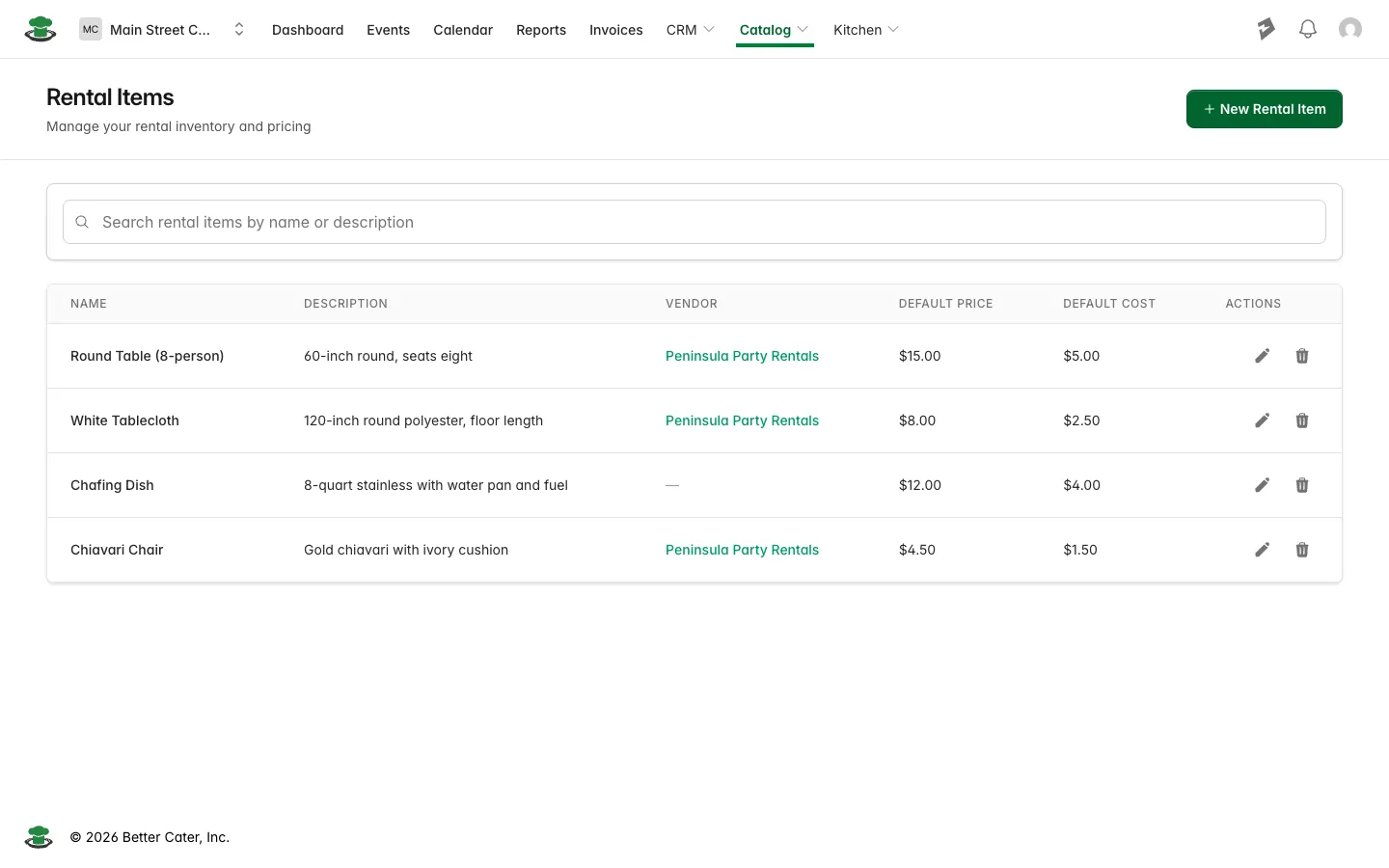
What it does. Rental Items is your equipment catalog: the tables, chairs, linens, chafers and serving pieces you charge for on an event. Each item holds the price you charge, the cost you pay, the supplier and its tax settings, so nobody retypes them job by job.
When you’d use it. Setting up the gear you quote most weeks, so a wedding needing 15 round tables and 120 chairs is priced the same way every time. Or when your rental house raises the price of linens and you want new events to pick up the new number.
How to open it
Click Catalog in the top menu, then Rental Items.
What belongs in Rental Items
Equipment and event items you charge for or need to keep track of: tables, chairs, linens, chafing dishes, glassware, tents, heaters, serving pieces. Anything you rent in, or own and haul to the job, that should sit on the quote as its own line and get loaded on the truck.
Food and drink go in Menu Items, and people go in Staff Roles. Rentals are the third, and all three price into the same event.
The list
Each row shows the item, its description, the vendor you source it from, the Default Price you charge for one and the Default Cost it costs you. Search matches names and descriptions, so a long catalog narrows quickly. The pencil opens an item for editing, and the archive icon takes one off the active list.
Vendor is the supplier you rent the item from, which tells your team where to get more chairs, linens or specialty equipment when an event needs more than you own. A dash means no vendor, which is how the gear you already own shows up.
New Rental Item adds one to the catalog.
Price, cost and margin
Click an item’s name to open it. Pricing sits at the top as three tiles.
| Tile | What it holds |
|---|---|
| Price | What you charge the client for one. |
| Cost | What the item costs your business. That can be the rental house price, a replacement cost, or an internal number you use for equipment you own. |
| Margin | What is left between the two, as a percentage of the price. It reads as a dash until both price and cost are above zero. |
Cost is what makes rentals count on the profit analysis report, so an item with no cost recorded reads as pure profit there.
Tax and billing defaults
Underneath the pricing, Tax & Billing lists the four settings that decide how the item behaves once it is on an event.
| Setting | What it means for you |
|---|---|
| Tax Category | Which tax rules apply to this item. Every account starts with one rental category, Equipment & Rentals, and the field shows it as read-only text while that is the only one you have. Which taxes that category collects is set in your tax settings. |
| Tax Exempt | Yes leaves this specific item out of tax calculations even when its category is taxed. |
| Gratuity Eligible | Yes means a new event line from this item has gratuity applied. |
| Service Charge Eligible | Yes means a new event line from this item has the service charge applied. |
These three are defaults, not locks. They are what a new event line starts with, and the line itself can be changed once it is on the event.
Editing an item
Edit on the item’s page opens the form.
The Name and Description are what your client reads on a proposal, so write them the way you want them printed. Vendor is set here too, and No vendor is the right answer for equipment you own. Default Price and Default Cost feed the tiles above. The three check boxes under Settings carry gratuity, service charge and tax exempt onto new event lines. Click Update Rental Item to save.
Changing a price here changes what new events start with. Events you already built keep the numbers they were given.
Adding an item
Click New Rental Item, give it the client-facing name, then the default price and the default cost. Name, price and cost are required and the rest is optional, so an item you own with no supplier saves fine with No vendor. Click Create Rental Item and the item opens on its own page, ready to add to any event.
How a rental lands on an event
Open an event and go to the Rentals tab. Add Rental Item picks the catalog item, then you set the quantity for that job. The item name, description and unit price arrive from the catalog and can be changed for this one event without touching the catalog. The cost comes across from the catalog and is not on the event form.
The tab lists Item, Quantity, Unit Price and Total, with a rentals subtotal underneath. The step by step is in add rentals and staff to an event.
Where rentals show up after that
- Event Totals on the event gets a Rental Items line beside Menu and Staff Roles, so equipment counts toward the event price and the profit on it.
- Proposals and invoices group rentals under their own Rentals heading, with the quantities and totals from the tab.
- The packing list, from Create report on the event, has an Equipment & Rentals section listing each item and quantity with a check box, so the crew can tick things off as they load and again when they come back.
- The banquet event order lists the rentals and their quantities for the crew working the room. See build a banquet event order.
Good to know.
- Two active items cannot share a name, so a second “Chafing Dish” needs a size or a finish in the name to tell them apart.
- Archiving takes an item off the list and out of the picker on new events. Events that already carry it keep their lines and their prices. There is no archived view to browse, so archive an item when you are done offering it rather than to tidy the list for a season.
- Margin is worked out from the numbers on the catalog item. A line whose price you changed on the event does not feed back into it.