
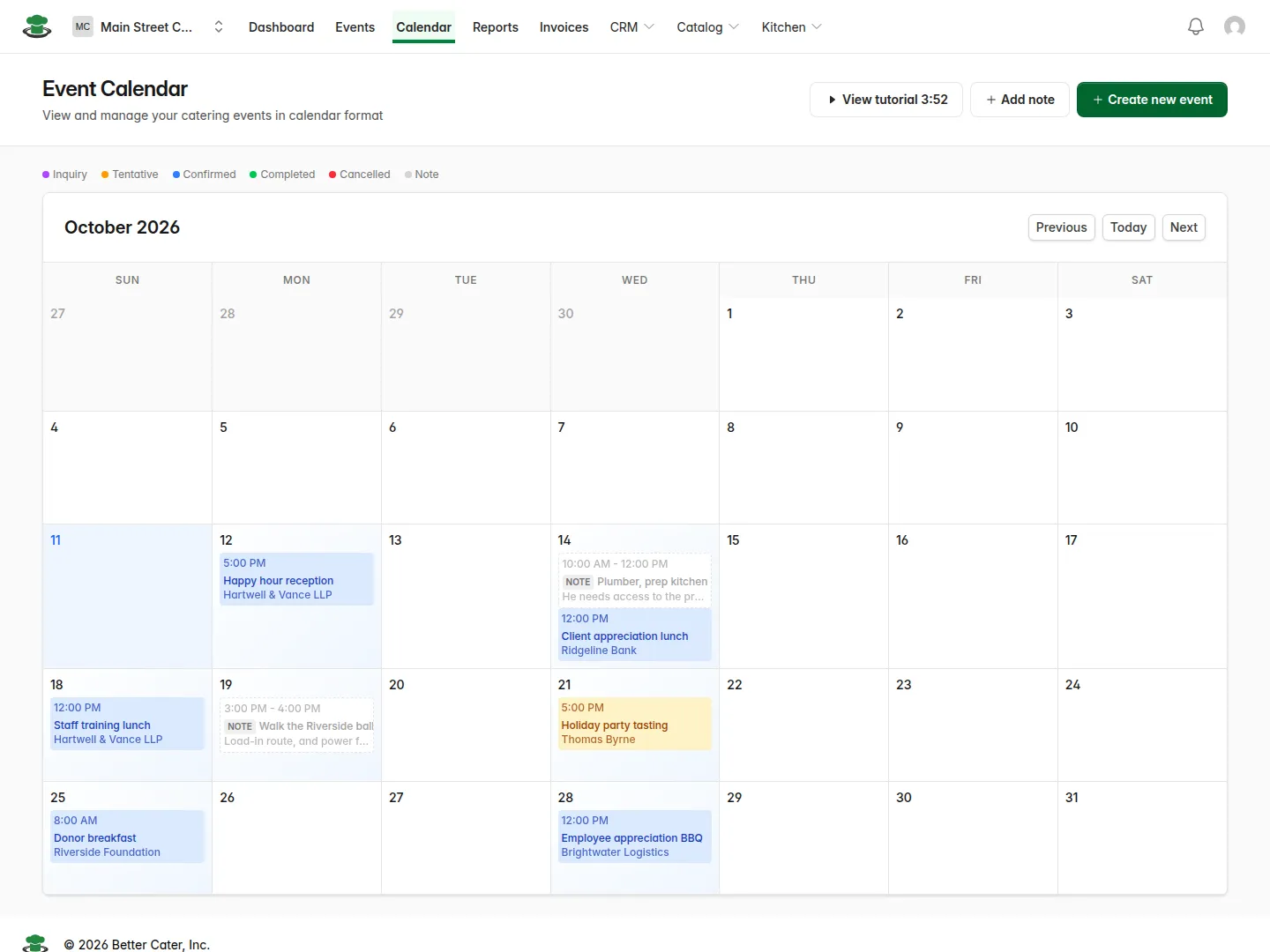
What it does. The calendar shows a month of your events at a time, colored by where each one stands. It’s the fastest way to see whether you can take a date before you say yes on the phone.
When you’d use it. A client asks about the 20th and you need to know what’s already on that day. Or you’re deciding whether to hold a tentative booking that’s blocking a better one.
How to open it
Click Calendar in the top navigation. It opens on the current month.
Reading the colors
Every entry is colored by its status, and the legend above the month names each color:
| Color | Status |
|---|---|
| Purple | Inquiry |
| Amber | Tentative |
| Blue | Confirmed |
| Green | Completed |
| Red | Cancelled |
| Gray | Note, which isn’t an event at all |
Each entry shows its start time (and end time, when the event has one), the event name, and the client. A day with purple entries and no blue is a day you haven’t actually booked yet.
Moving around
The month name sits above the grid with three links next to it:
- Previous goes back a month.
- Today returns to the current month.
- Next goes forward a month.
Opening something
Click an event and it opens in full. Click a note and it opens for editing right there on the calendar.
Adding to the calendar
Two buttons sit in the top right:
- Create new event starts a normal event, which then shows up on its date.
- Add note puts a reminder on a day without creating an event. Good for a staff meeting, a delivery, or a holiday closure.
What you’ll see. Anything you add appears on its date in the right color, and the same events show up on your dashboard and events list.