
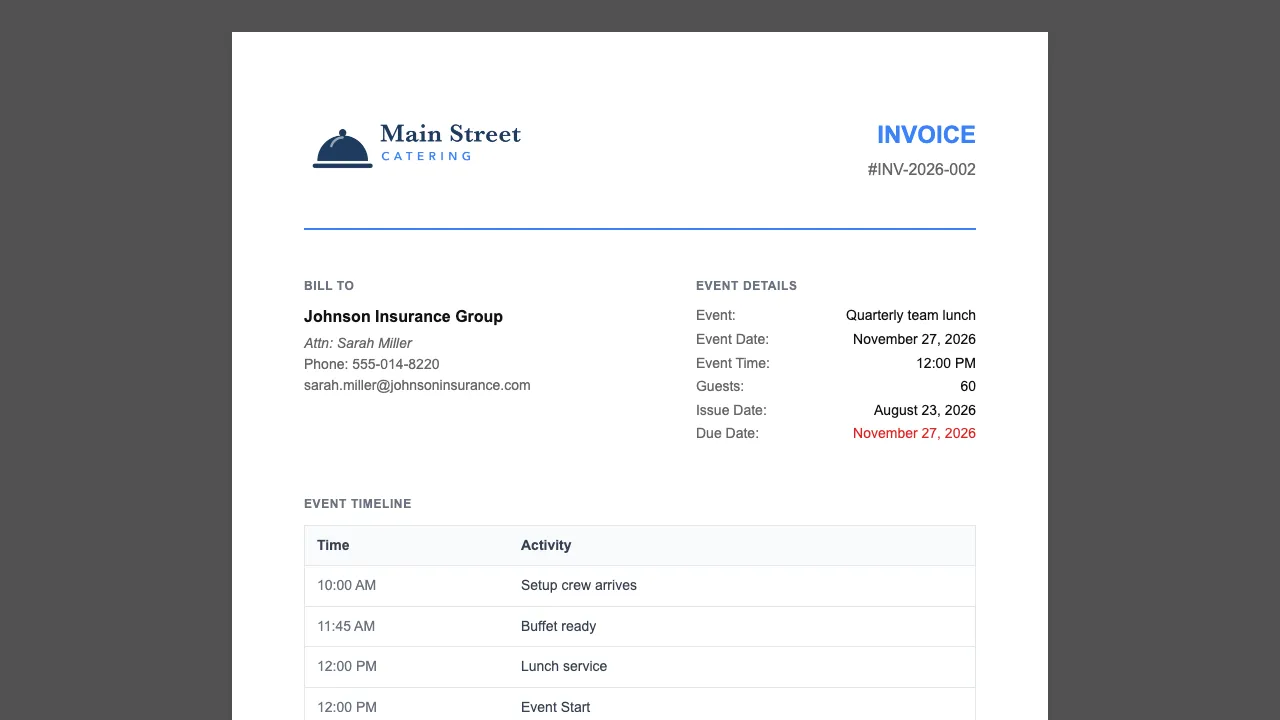
What it does. An invoice is the bill you send a client for a booking. It’s built from the event, so the food, rentals, staff, service charge, tax, and any fees or discounts on it are exactly what the client is asked to pay.
When you’d use it. Once a booking is confirmed and you’re ready to bill, whether that’s the full amount, a deposit, or a progress payment partway through the job.
Create the invoice
- Open the event and go to the Billing tab.
- Under Invoices, click Create invoice.
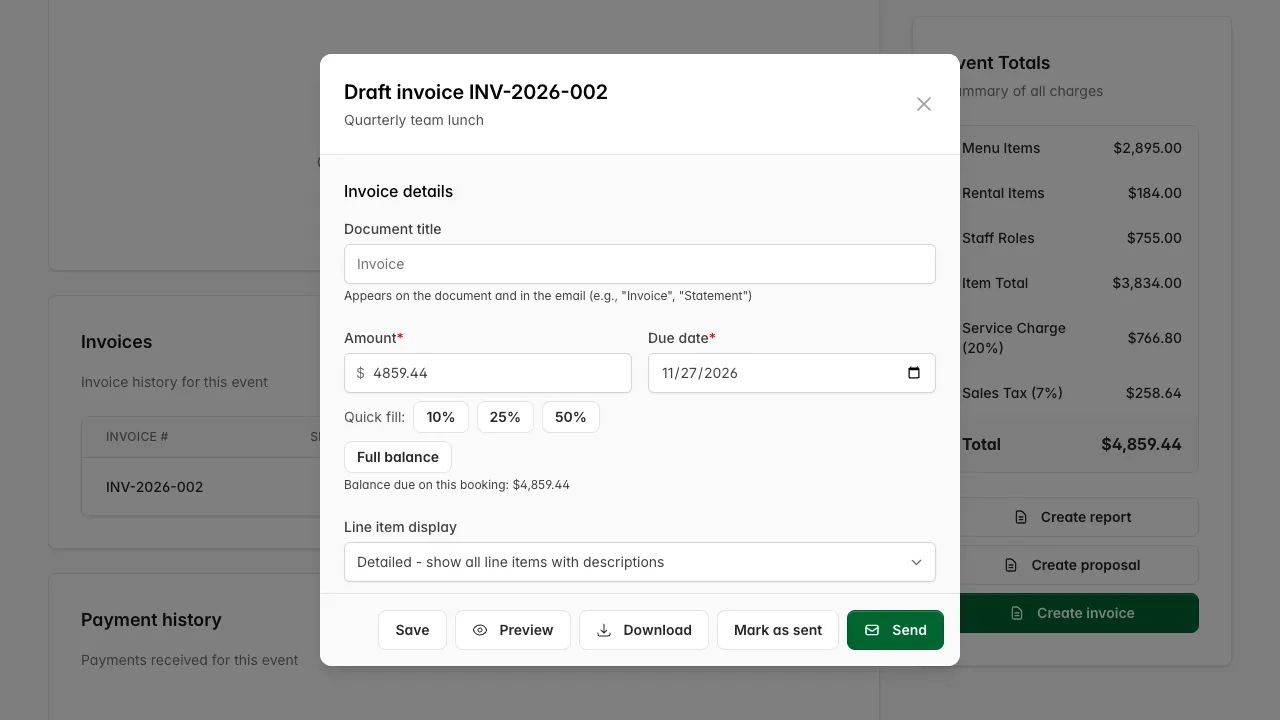
- Check the Amount. It starts at the booking’s balance due, what the client still owes. A Full balance button fills that back in if you change it, and 10%, 25%, and 50% quick fill buttons appear too when nothing’s been paid yet.
- Check the Due date. It starts on the event’s date.
- Leave Document title blank to call it “Invoice”, or type something else, like Statement, to use that instead.
- Under Display options, tick what the client should see: quantities, unit prices, descriptions, and so on. These are much the same options as a proposal.
- Read the invoice the way the client will. On a computer it sits beside the options and changes as you edit them; on a phone, click Preview to open it in a new tab.
- Click Save if you’re not ready to send yet.
Send it
- Click Send.
- Check the To field. It fills in from the client’s billing email, or the contact’s email if the client has no billing email. Separate several addresses with commas.
- Add a Message if you want a personal note in the email.
- Click Send email, then confirm.
If you’d rather send it from your own inbox, click Download instead and attach the PDF to your own email.

What you’ll see. The invoice moves to the Billing tab’s Invoices list with a status of Sent and the time it went out. The client gets an email from your business with the PDF attached; the email body states what’s due right now (the full ask if nothing’s paid yet, or the current balance if a payment already landed).
Good to know.
- A booking can carry more than one invoice over time, for a deposit and then a balance, for example. Each one only asks for what the booking still owes at the moment you create it.
- To send it again, as a reminder or after a payment changes the balance, click Resend on the invoice row. It recomposes the same invoice with today’s numbers rather than creating a new one, so the invoice number stays the same.
- Recording a payment against this invoice updates the balance everywhere it’s shown, including on a resend.