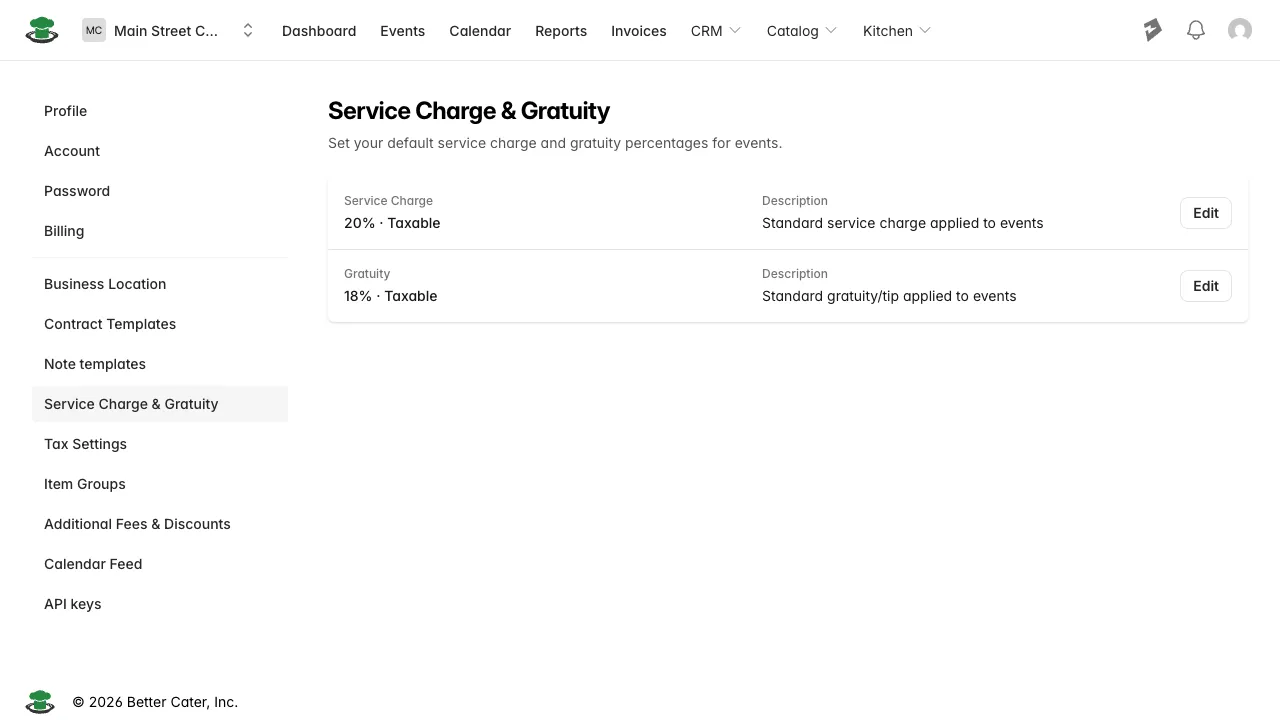
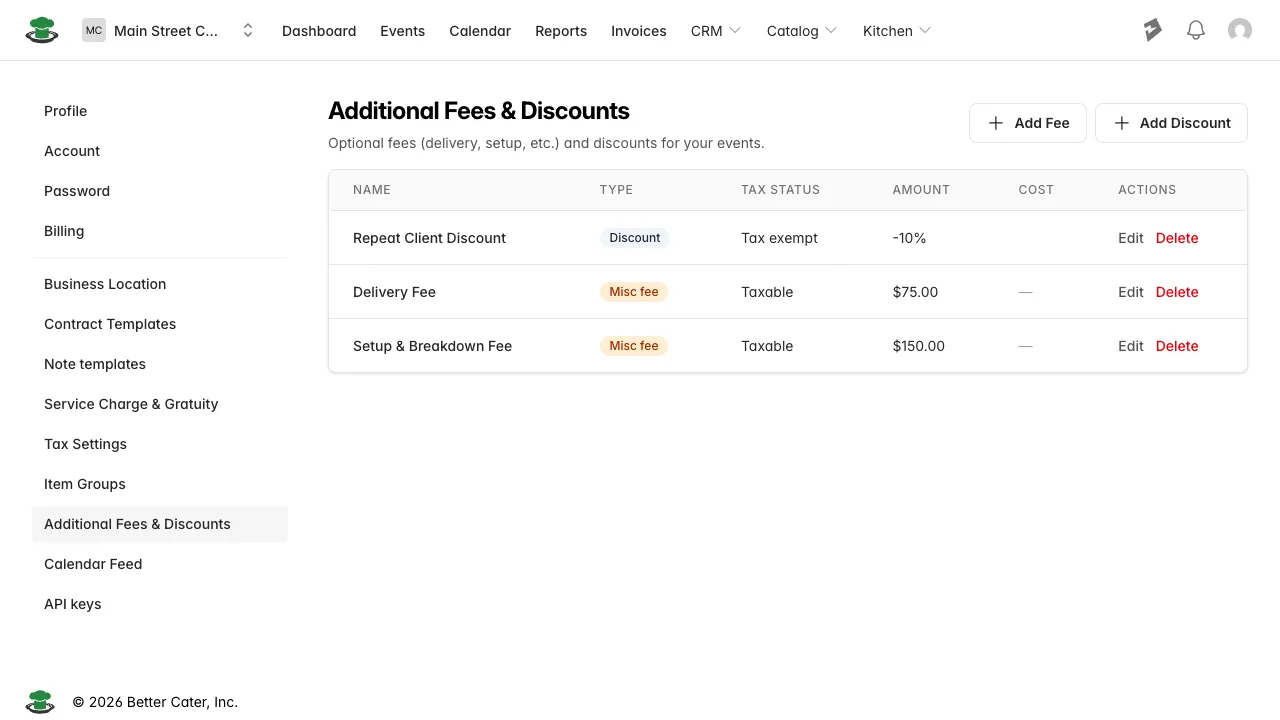
What it does. These are the charges an event carries on top of its menu, rentals, and staff: a delivery or setup fee, a discount, the service charge, and gratuity.
When you’d use it. A delivery fee on a drop-off job, a loyalty discount for a repeat client, or turning on gratuity for an event where the client wants a separate tip line from the service charge.
Add a fee or discount
- Open the event’s Details tab and scroll to Additional Fees & Discounts.
- Click Add Fee or Add Discount.
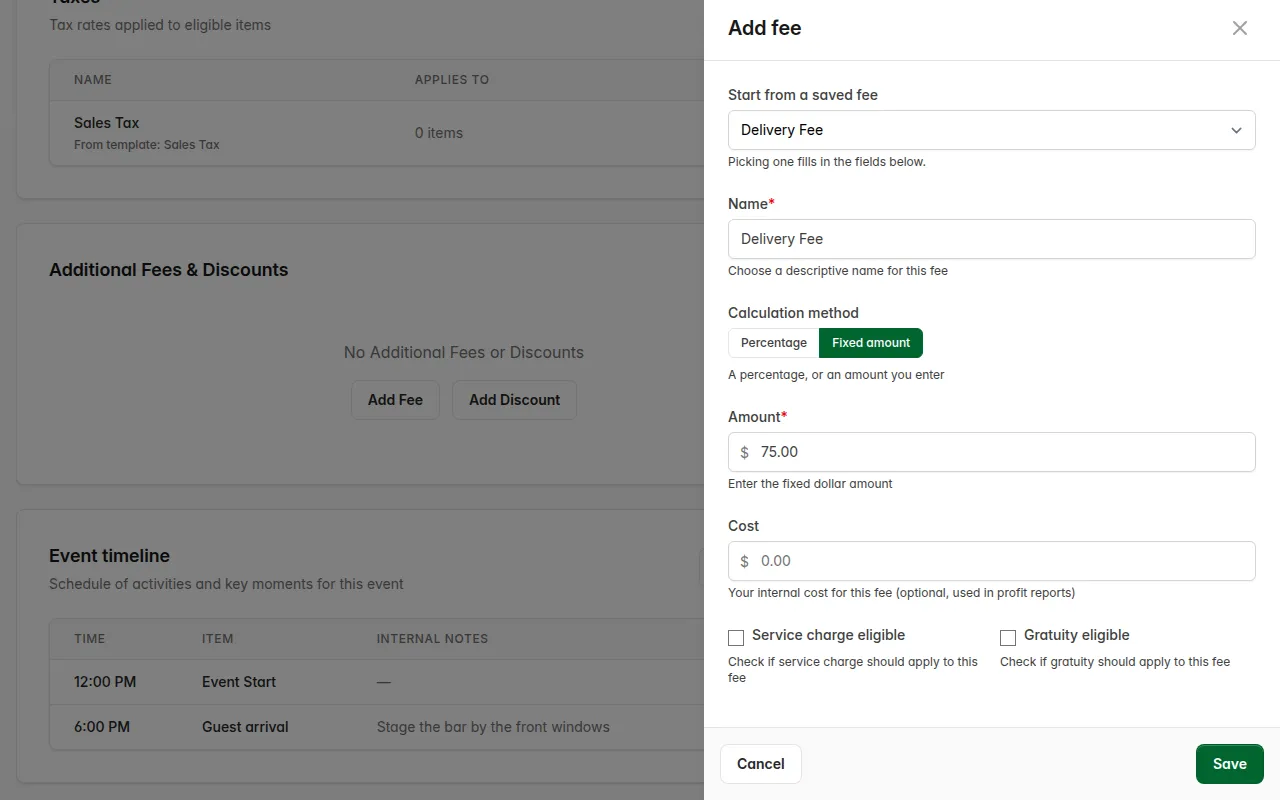
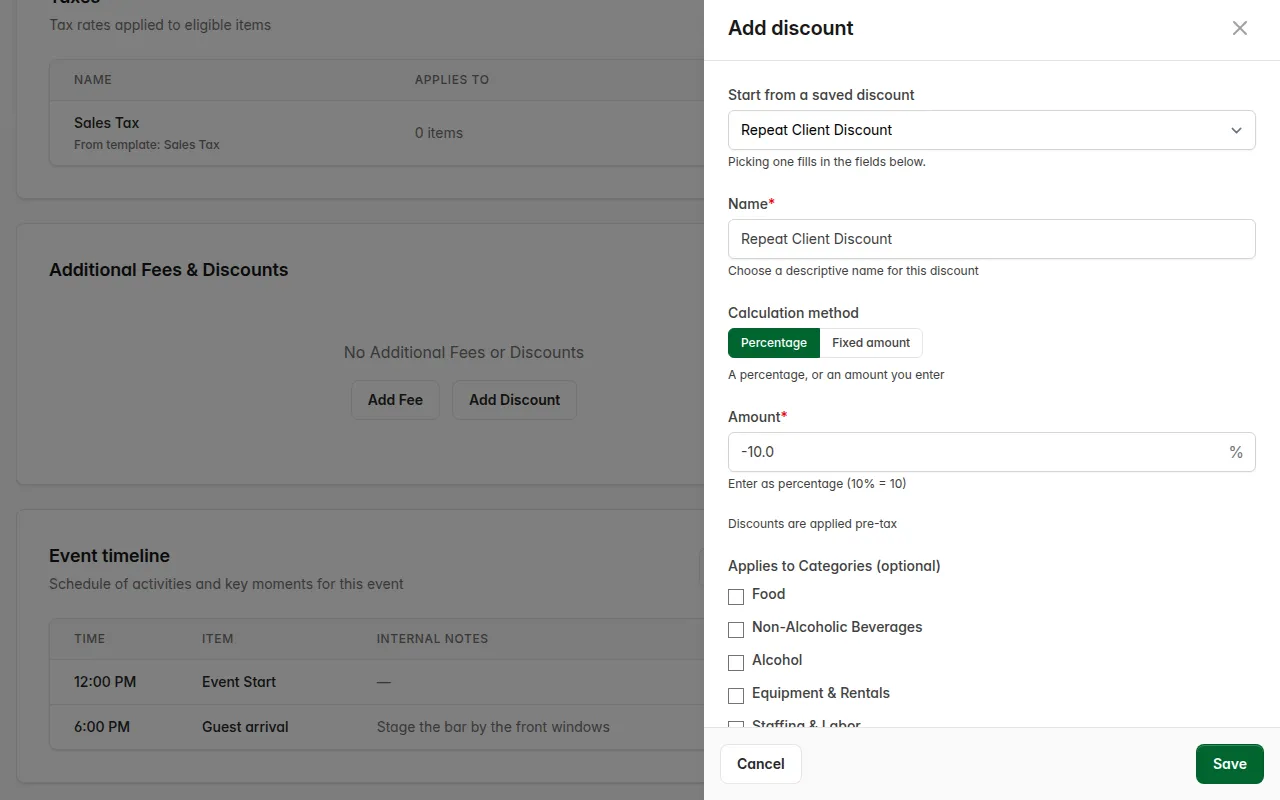
- Under Start from a saved fee (or Start from a saved discount), pick one to reuse a fee or discount you’ve already set up, or leave it on Start from scratch.
- Replace the prefilled Name. It starts as something generic, like “Misc Fee”, unless a template already set it.
- Choose the Calculation method. Fixed amount is a dollar figure you type in; Percentage calculates off the event’s charges.
- For a percentage fee, choose whether it calculates on the Subtotal (pre-tax) or the Total (post-tax).
- Enter the Amount.
- For a fee, pick a Tax Category. It’s required, and Save won’t go through without it. Choosing a template fills it in for you.
- Click Save.
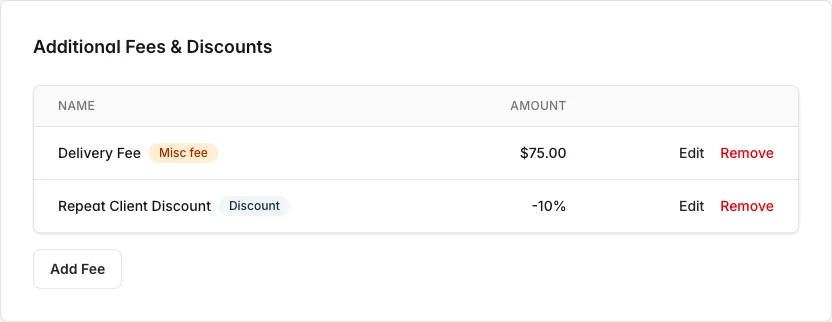
What you’ll see. The fee or discount appears in Additional Fees & Discounts, and Event Totals recalculates to include it.
Turn on gratuity
Every new event already carries your account’s default service charge. Gratuity doesn’t apply itself, so add it when the client wants a separate tip line.
- On the Details tab, find Service Charges & Gratuity.
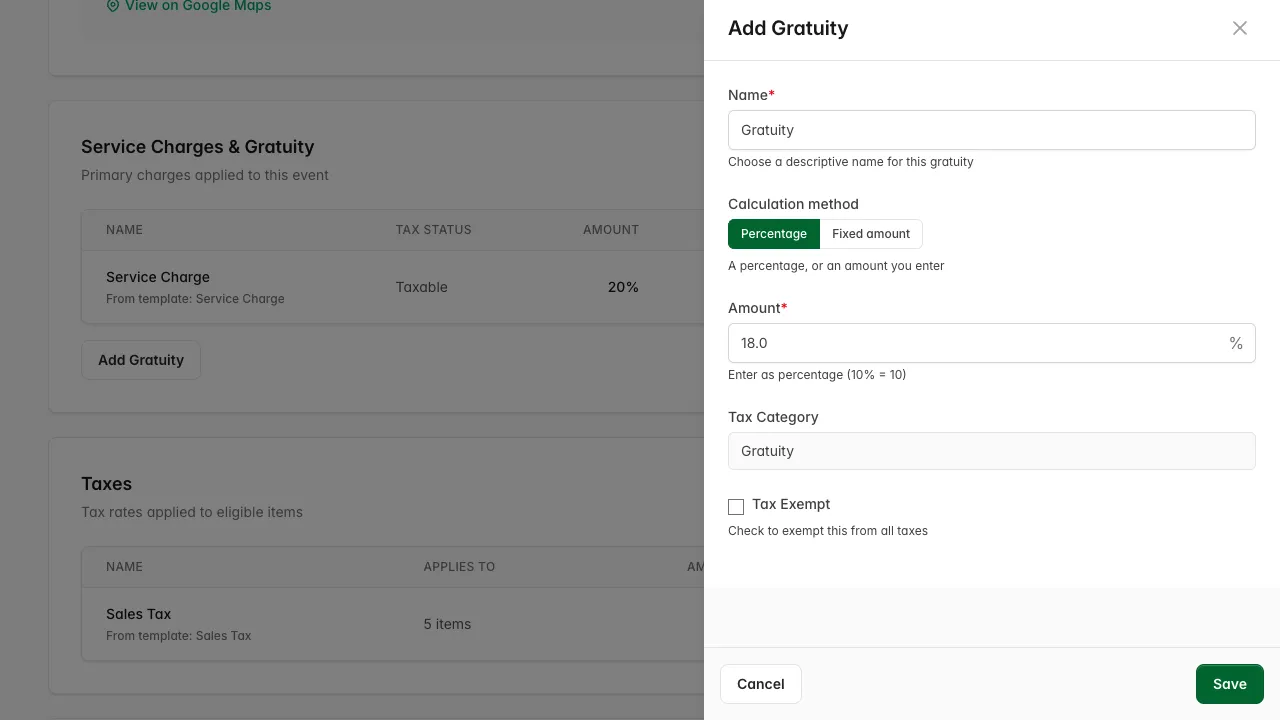
- Click Add Gratuity.
- Confirm the percentage. It starts at your account’s default.
- Click Save.
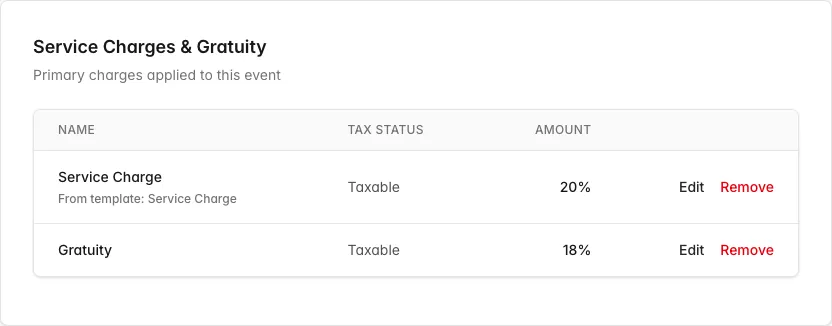
What you’ll see. Gratuity joins the service charge in the Service Charges & Gratuity table, and Event Totals recalculates to include it.
Good to know.
- Fixed amount and Percentage are the two ways a fee or discount can be calculated. A typed dollar figure is a “Fixed amount”; a rate off the event’s charges is a “Percentage”. Service charge and gratuity get that same choice, but only the first time you add one to an event, before it exists on that event. Once it’s saved, editing it only changes the number: the account’s default service charge and gratuity rates in Settings, and an existing service charge or gratuity on an event, are all Percentage only.
- An event carries only one service charge, one gratuity, and one discount at a time. Once one exists, its Add button drops off the page; edit or remove the existing one instead of adding a second. Fees have no such limit; add as many as the job needs.
- Set up the templates you reuse, delivery fee amounts, discount percentages, service charge and gratuity rates, in Settings. Fee and discount templates live under Additional Fees & Discounts; service charge and gratuity rates live under Service Charge & Gratuity.