
What it does. Builds a PDF of the tax you collected across a date range, broken out by tax and rate, and again one event at a time.
When you’d use it. Filing a monthly or quarterly sales tax return, or checking what you’ve collected so far in the period.
How to run the report
- Click Reports in the top menu.
- Set the Date range to the period you’re filing, like a month or a quarter.
- Under Event status, check the statuses you want counted. Confirmed and Completed start checked; Inquiry, Tentative, and Cancelled start unchecked.
- Under Report type, choose Sales tax. Kitchen report, Profit analysis, and Shopping list run from this same page.
- Add anything you want printed at the top of the report in Print notes. It’s optional.
- Check the Events included count under Your report on the right. It counts the events your filters match, and it recounts every time you change a filter.
- Click Generate & download PDF.

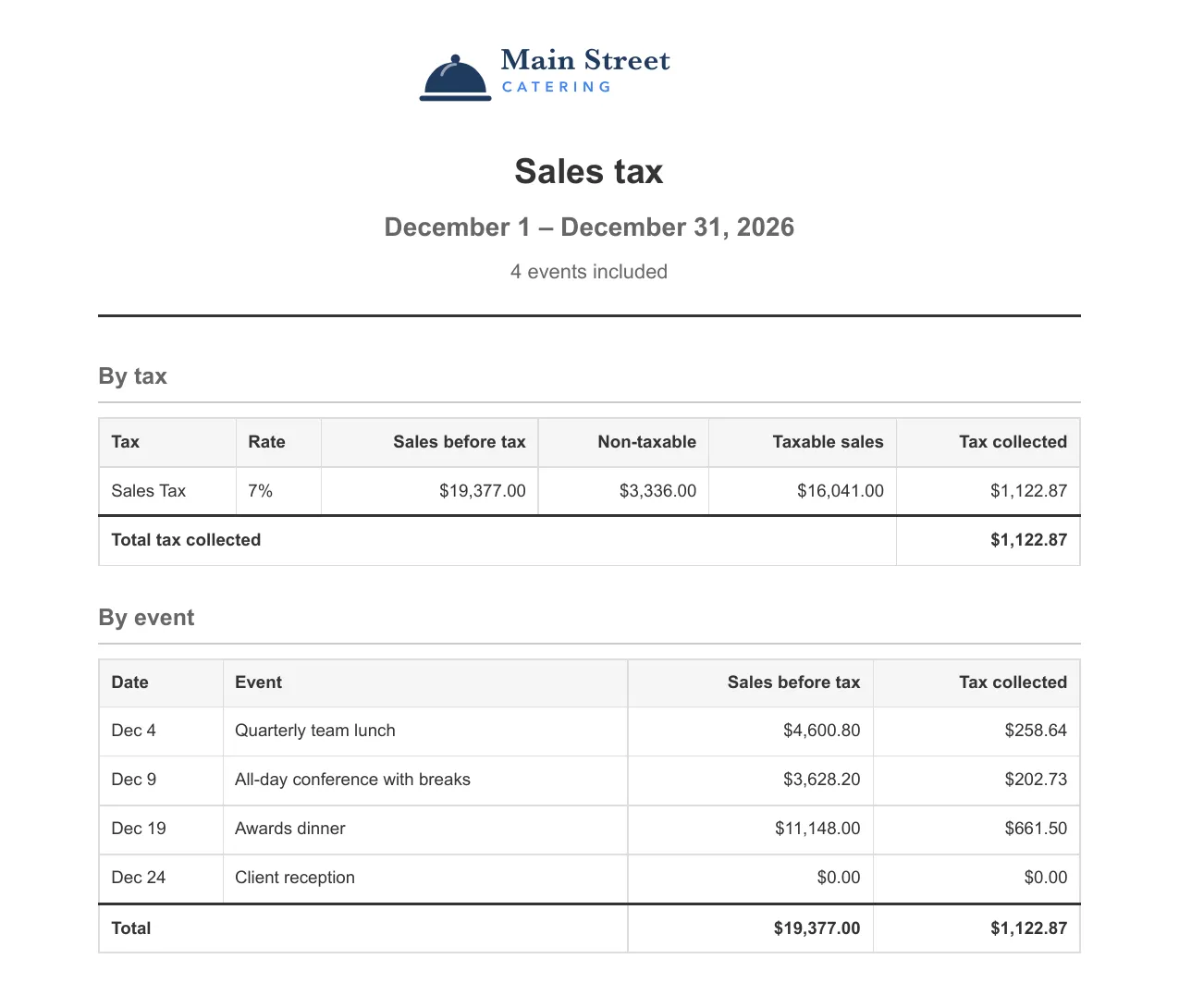
What you’ll see. The PDF downloads to your computer. There’s no preview on the page, so open the file to read it. It starts with your logo, the title Sales tax, the date range, and the number of events included, then gives you two tables. By tax has one row for every tax and rate you charged, plus a Total tax collected line. By event lists each booking’s date, name, sales, and tax, plus a Total row that matches the one above it.
Good to know.
- What the By tax columns mean. Sales before tax is everything you billed in the range before tax. Non-taxable is the part of it no tax applied to, like labor. Taxable sales is what’s left. Tax collected is the figure you file.
- Events are counted by their event date. One on the first or last day of your range is in; one the day before it starts is out.
- If nothing matches your filters, Events included reads 0 events, the card says “No events match these filters.”, and Generate & download PDF stays grayed out. Widen the date range or check more statuses.
- An event that collected no tax still gets its own row, at $0.00, so nothing in the range goes missing.
- An event you made tax exempt gets a “tax exempt” note next to its name and collects $0.00. Its sales still count toward Sales before tax, and the part of them that was taxable moves into Non-taxable.
- The report only totals the tax your events already carry, so the rates and the item types they cover come from your tax settings.