
What it does. Reports builds a PDF across every event in a date range: what the kitchen makes, what you buy, what your events earned, and the sales tax you collected. Four reports run from this page, and they all start from the same three choices.
When you’d use it. Monday morning, to hand the kitchen one sheet for the week and your buyer one shopping list. Or at the end of a month, to see what the work earned and what tax you took in.
How to open it
Click Reports in the top menu.
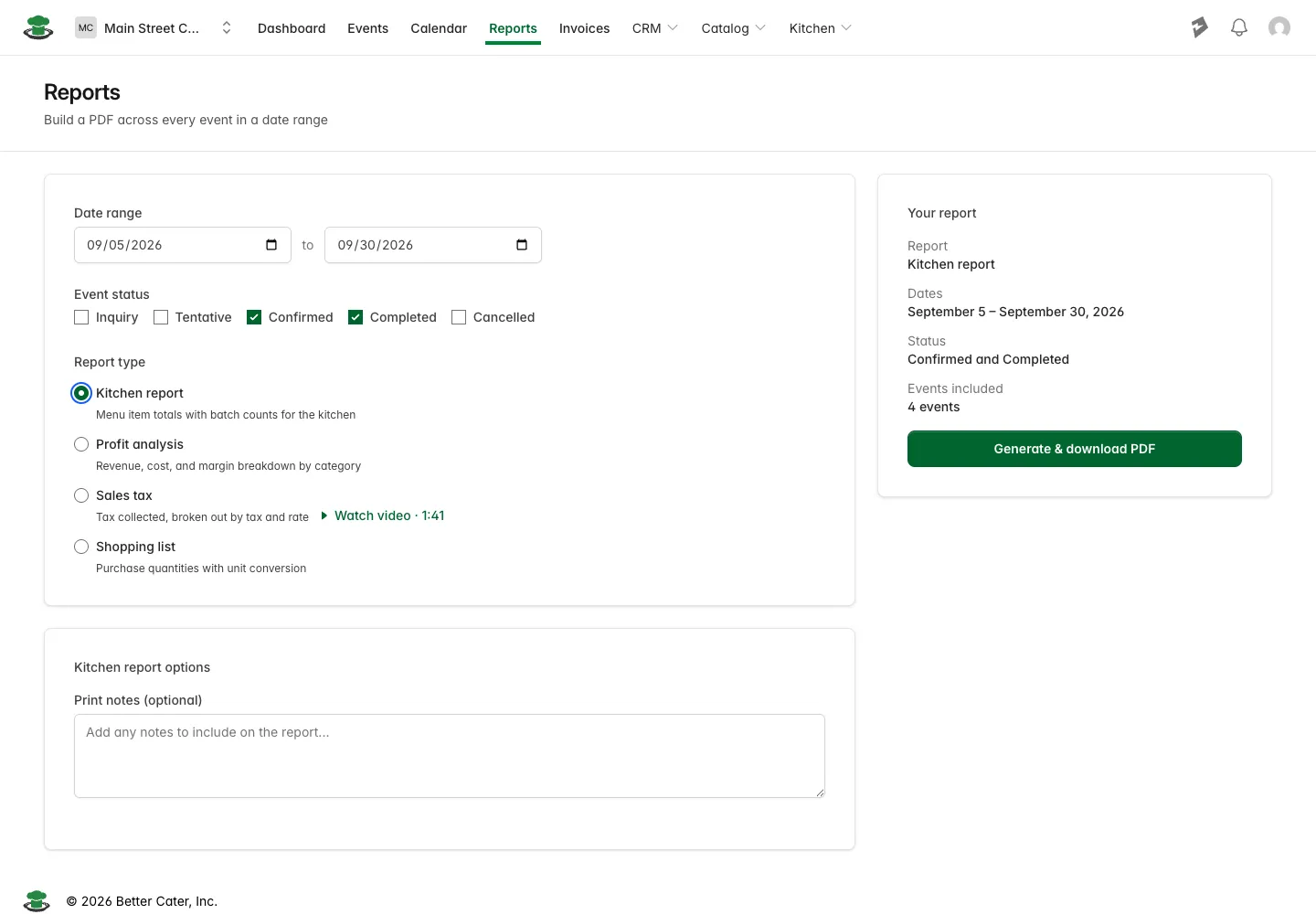
Every report starts the same way
Three choices, in this order.
Date range. The period the report covers. A week ahead for production, the month you are closing for profit, the quarter you are filing for sales tax. Events are counted by their event date, so one on the first or last day of the range is in, and one the day before it starts is out.
Event status. Which events count. Confirmed and Completed start checked, which is the booked work most reports are about. Add Inquiry or Tentative to see what could still land. Cancelled stays unchecked unless you specifically want to look at cancelled work. Statuses are set on the event itself, so where an event sits in your pipeline decides what the report picks up.
Report type. Kitchen report, Profit analysis, Sales tax or Shopping list. Picking one opens an options card below it and turns on the button on the right.
Every change recounts the events straight away. Nothing is generated until you ask for it.
Print notes
Each report has a Print notes (optional) box in its options card. Whatever you type there prints at the top of that PDF: an allergy, a pickup time, a staffing note, anything the person reading it should see before the details.
Print notes are not saved. They print on the copy you generate now, and the box is empty the next time you open the page.
Your report
The card on the right is the check before you generate anything. It shows the report, the dates, the statuses and Events included, which is how many events your filters match. If that count looks wrong, fix the filters before you download.
When the count is right, click Generate & download PDF.
What you’ll see. The PDF downloads to your computer. There is no preview on the page, so open the file to read it. Every report starts with your logo, the report name, the date range and the number of events included, then lists those events by name and date. The sales tax report names them in its By event table instead.
If nothing matches, Events included reads 0 events, the card says “No events match these filters.” and the button stays grayed out. Widen the dates or check more statuses.
Kitchen report
One production sheet for every event in the range. The Menu Items table has a row per item with its description, the Total across all the events, and, for anything that appears in more than one of them, a line underneath naming each event and the count it needs, so you know what goes in each van.
The Preparation Notes column is an empty box to write in. For anything built from a recipe, the batch count prints inside it, like “14 batches (10 ea per batch)”. Batches come from the recipe and its yield, so an item with no recipe gets a blank box. To get one on there, add a recipe to a menu item.
Run it at the start of a production week, print it, and let the kitchen work from the one sheet.
Profit analysis
What the events earned. Gross profit sits at the top with the margin, revenue and cost behind it, then a table breaks it down: Category, Revenue, Cost, Profit and Margin, with a Grand Total row. Cancelled events are left out of these figures, even when you check Cancelled under Event status.
The categories are the tax categories your items sit in, so food, beverages, rentals and staff each land in the category you gave them. Fees and discounts get their own lines under an Additional Fees heading rather than being folded into a category.
Run it when you close a month, and before you change prices rather than after. Costs are the ones you set per item when you built the event, so the report is only as good as those numbers. Any line with no cost recorded counts as pure profit, and the report says how many lines that is and how much revenue they cover. Taxes and fees applied after tax are left out.
Sales tax
The tax you collected in the period, as a reporting aid when you review your numbers. By tax has a row for every tax and rate you charged, with sales before tax, the non-taxable part, taxable sales and tax collected, plus a Total tax collected line. By event lists each event’s date, name, sales and tax, with a total that matches the one above.
Run it for the month or quarter you are filing, then hand it to whoever does your books. The step by step, and what each column means, is in run a sales tax report.
Shopping list
One buying list for all the events in the range. Better Cater takes the recipes behind your menu items, adds up the ingredients, and prints them alphabetically with a tick box beside each one.
Each row shows the item and which menu items it came from, the Qty Needed in the recipe’s unit, the Purchase Qty converted into the unit you actually buy in, so 35 pounds of flour reads as 0.7 of a sack, and the vendor. Vendor and Purchase Qty appear when your ingredients carry that information. Ingredients only reach this list through a recipe, so a menu item with no recipe contributes nothing to it.
Run it before you place the week’s orders or head to the store.
Documents for one event
This page is for totals across many events. The documents that cover a single event are made from the event itself: open the event and click Create report. That drawer holds the packing list, recipe sheets, and single event versions of the kitchen report, shopping list, profit analysis and sales tax, along with the banquet event order your crew works from on the day.
Good to know.
- A menu item whose count is still open shows “Count not set” on the kitchen report and the shopping list, along with the event it is waiting on, so the sheet doubles as the reminder to chase it.
- If you type the dates the wrong way round, the page swaps them for you.
- Reports read the events themselves, not your invoices. Whether an event has been billed or paid makes no difference to what comes out.